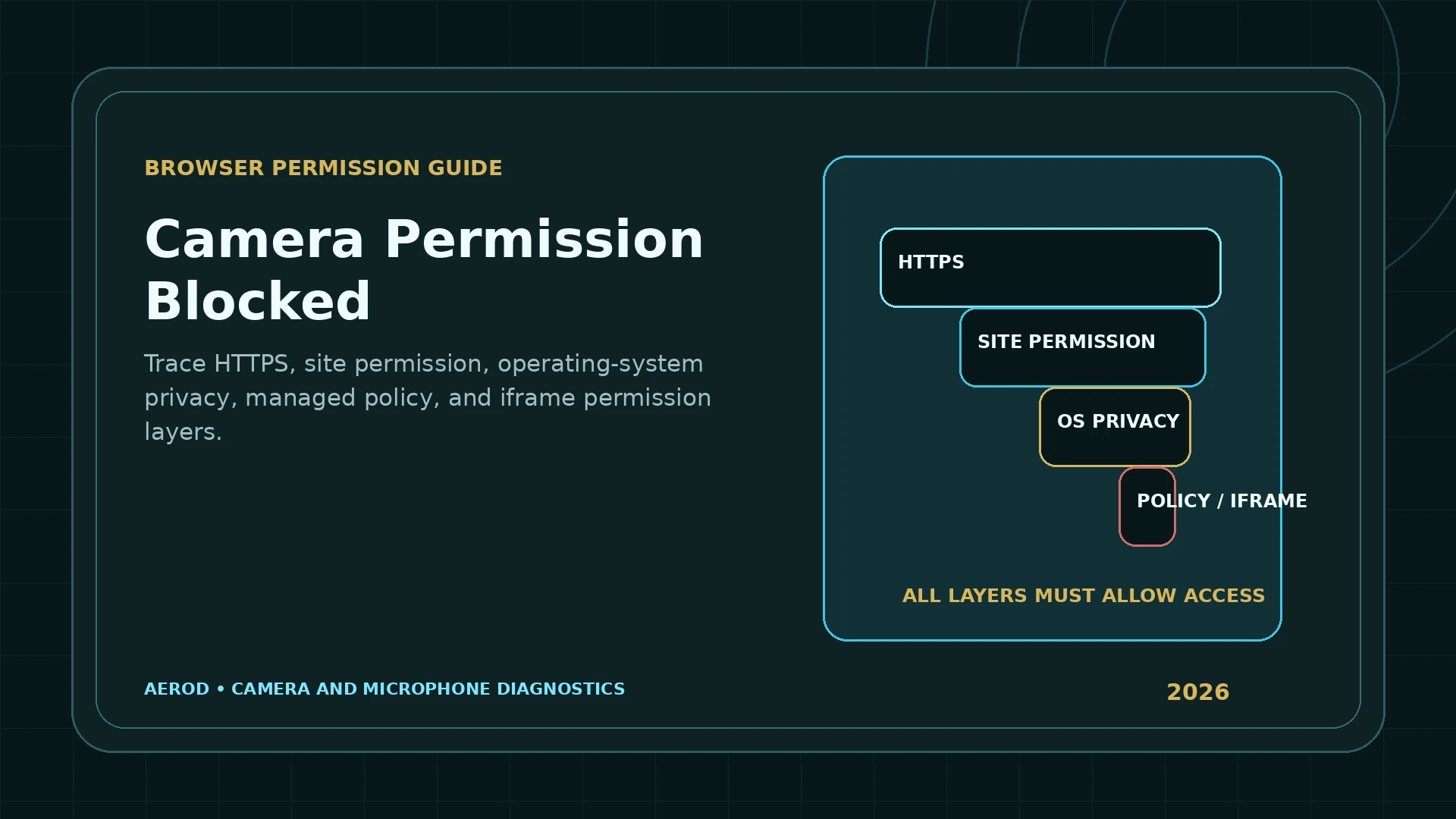
A blocked browser camera can fail at more than one permission layer. Allowing a site in the browser is necessary, but it is not always sufficient. The page must be secure, the site must be allowed, the browser must be permitted by the operating system, the device must be available, and any embedded-frame or administrator policy must allow camera use.
Fastest reset
Clear the site's saved camera decision, confirm operating-system access for the browser, reload, and request permission again.
Use Online Webcam Test after resetting the permission. Start only the camera so a microphone problem cannot hide the result.
The five permission layers
| Layer | Requirement | Failure symptom |
|---|---|---|
| Secure context | HTTPS or a trusted local development context | navigator.mediaDevices unavailable or security-related failure |
| Site decision | The current origin is allowed to use the camera | Saved block, denied prompt, or no new prompt |
| Browser default | Sites may ask for camera access and a usable device is selected | Requests globally blocked or wrong default device |
| Operating system | The browser application has camera access | Browser says Allow, but the device still cannot open |
| Policy and embedding | Managed policy and Permissions Policy permit camera use | Controls locked, or an iframe never receives a prompt |
Why HTTPS matters
MDN documents that getUserMedia() is available only in secure contexts. For ordinary web use, that means HTTPS. On an insecure page, navigator.mediaDevices can be undefined and the page cannot open the camera.
Local development at localhost is treated as a secure context by browsers, but a normal site loaded over plain HTTP should not be expected to request camera or microphone access.
Check the address bar:
- The page should load from
https://. - There should be no certificate warning.
- The browser should identify the connection as secure.
- A corporate interception certificate should be trusted by the device when applicable.
Reset a saved block in Chrome
Google's current desktop guidance uses the prompt choices Allow while visiting the site, Allow this time, and Never allow. Chrome also keeps site-specific camera decisions under Camera settings, where you can remove an existing permission or change a site from not allowed to Allow.
- Open the affected site.
- Open the site-information or permissions control near the address bar.
- Find Camera.
- Remove the saved decision or change Camera to Allow.
- Reload the page.
- Start the camera test again.
Also review Chrome Settings → Privacy and security → Site settings → Camera. Confirm the default permission is appropriate, review the allowed and not-allowed site lists, and select the intended default camera.
Reset a saved block in Microsoft Edge
Edge has per-site permission controls and also depends on Windows privacy settings. Microsoft documents that individual websites still need permission even when Edge itself has camera access.
- Open the site's permission panel.
- Set Camera to Allow or remove the saved block.
- In Edge, open Settings → Privacy, search, and services → Site Permissions → All sites, then review the site's Camera permission.
- Check Windows Privacy & security → Camera.
- Confirm camera access and desktop-app access are enabled.
- Reload the site.
Reset camera permission in Firefox
Mozilla documents several ways to change a saved decision:
- Use the permission icon in the address bar and clear the current status.
- Open Settings → Privacy & Security → Permissions → Camera.
- Remove the website from the saved Allow or Block list.
- Use Page Info → Permissions for a site-specific override.
Firefox can remember an Allow, temporary Allow, Block, or temporary Block decision. Clear the saved status when you need the browser to ask again.
Reset camera permission in Safari on Mac
Apple documents per-website Camera settings in Safari:
- Open Safari → Settings.
- Select Websites.
- Select Camera.
- Set the current site to Ask or Allow.
- Reload the site.
Safari permission and macOS application permission are separate. If Safari is blocked in macOS Privacy & Security → Camera, changing only the website setting will not restore access.
Check Windows camera privacy
Microsoft documents several Windows controls:
- Camera access for the device.
- Access for applications.
- Access for desktop applications such as desktop browsers.
Open Settings → Privacy & security → Camera. Enable the layers required by the browser. A desktop browser may not appear as a separate toggle in every Windows configuration; Microsoft notes that desktop apps can be governed through the desktop-app access setting.
After changing Windows privacy:
- Close the browser fully.
- Reopen it.
- Reload the site.
- Request camera access again.
Check macOS camera privacy
Apple documents camera access under System Settings → Privacy & Security → Camera. Enable the browser being tested.
If the browser is not listed, it may not have requested camera access yet. Open a secure camera page and request access, then review the setting again.
Apple also notes that the camera indicator light turns on when the camera is active. The indicator can help separate a permission failure from a dark or obstructed stream.
Managed browser and device policy
A workplace, school, or managed device can enforce camera settings. Chrome Help notes that administrators can configure camera and microphone settings and prevent users from changing them.
Signs of managed policy include:
- A setting labelled as managed by an organization.
- A camera toggle that is disabled or locked.
- The same denial in every browser profile.
- A security agent or device-management profile that controls hardware access.
- Camera access allowed only for approved domains.
Do not attempt to bypass organizational policy. Contact the administrator with the exact URL, browser, device, error, and business reason.
Embedded iframe and Permissions Policy failures
A camera test inside an iframe can fail even when the top-level page is secure. The Media Capture and Streams and Permissions Policy specifications require the top-level page to delegate camera access to a cross-origin frame. This is commonly done with the iframe allow attribute, while a restrictive response header can still block access.
A cross-origin iframe generally needs:
- An iframe
allowattribute whose camera allowlist includes the embedded origin. - No conflicting Permissions-Policy response header that disables camera access.
- A valid origin.
- Sandbox settings that do not remove the origin when camera access is needed.
When the frame is disallowed, the user may never see a prompt. Open the canonical top-level app route directly instead of an embedded copy when diagnosing Aerod's webcam test.
Permission allowed but camera still unavailable
Permission is only authorization. It does not guarantee that a device exists or can be opened.
After permission is correct, check:
- The webcam is connected and enabled.
- The privacy shutter is open.
- No other application is holding the camera.
- The intended camera appears after refreshing devices.
- The request does not require impossible resolution or device constraints.
- The browser and operating system are current.
- The driver works in another trusted camera application.
Continue with Webcam Not Working in a Browser when permission is no longer the failing layer.
Permission decisions and privacy
Grant camera access only to a site you intend to use. Browser permission can be temporary, session-based, or persistent depending on the browser and selected option.
After testing:
- Stop the camera stream.
- Close the page when finished.
- Review the browser's camera indicator.
- Remove persistent permission when it is no longer needed.
- Review the site's privacy and data-handling description.
Layer-by-layer reset checklist
Reset only the layer that is blocking access
- Confirm HTTPS.
- Clear the saved site decision.
- Allow sites to ask in browser defaults.
- Select the intended default camera.
- Enable browser access in Windows or macOS.
- Check managed policy.
- Open the app outside an iframe.
- Reload or restart the browser.
- Retest only the camera.
FAQ
Why did the site stop asking for camera permission?
The browser may remember a previous block or allow decision. Clear or change the site's camera permission, reload the page, and request access again.
Why is camera permission allowed in the browser but the camera still fails?
The operating system can block camera access for the browser, another app can hold the camera, the device may be missing, or the page may be restricted by policy or an embedded-frame rule.
Does a webcam page require HTTPS?
Yes in ordinary web use. getUserMedia is available only in a secure context such as HTTPS or localhost, and navigator.mediaDevices can be unavailable on an insecure page.
Can a company or school block camera permission?
Yes. Managed browser policy, operating-system policy, security software, and enterprise device management can prevent users from changing camera or microphone access.
Why can an embedded webcam test fail without showing a prompt?
The top-level page must delegate camera access to a cross-origin iframe, commonly through the iframe allow attribute. A restrictive Permissions-Policy header or a sandboxed frame without a usable origin can still prevent a prompt.
Should I allow camera access permanently?
Grant only the duration and site access you need. Review or remove saved permission after the test when persistent access is unnecessary.
Sources checked
- MDN: getUserMedia security, errors, and Permissions Policy
- Google Chrome Help: Use your camera and microphone in Chrome
- Mozilla Support: Manage camera and microphone permissions
- Microsoft Support: Windows camera, microphone, and privacy
- Apple Support: Safari website camera settings
- Apple Support: Control access to the camera on Mac
- W3C: Media Capture and Streams
- W3C: Permissions Policy