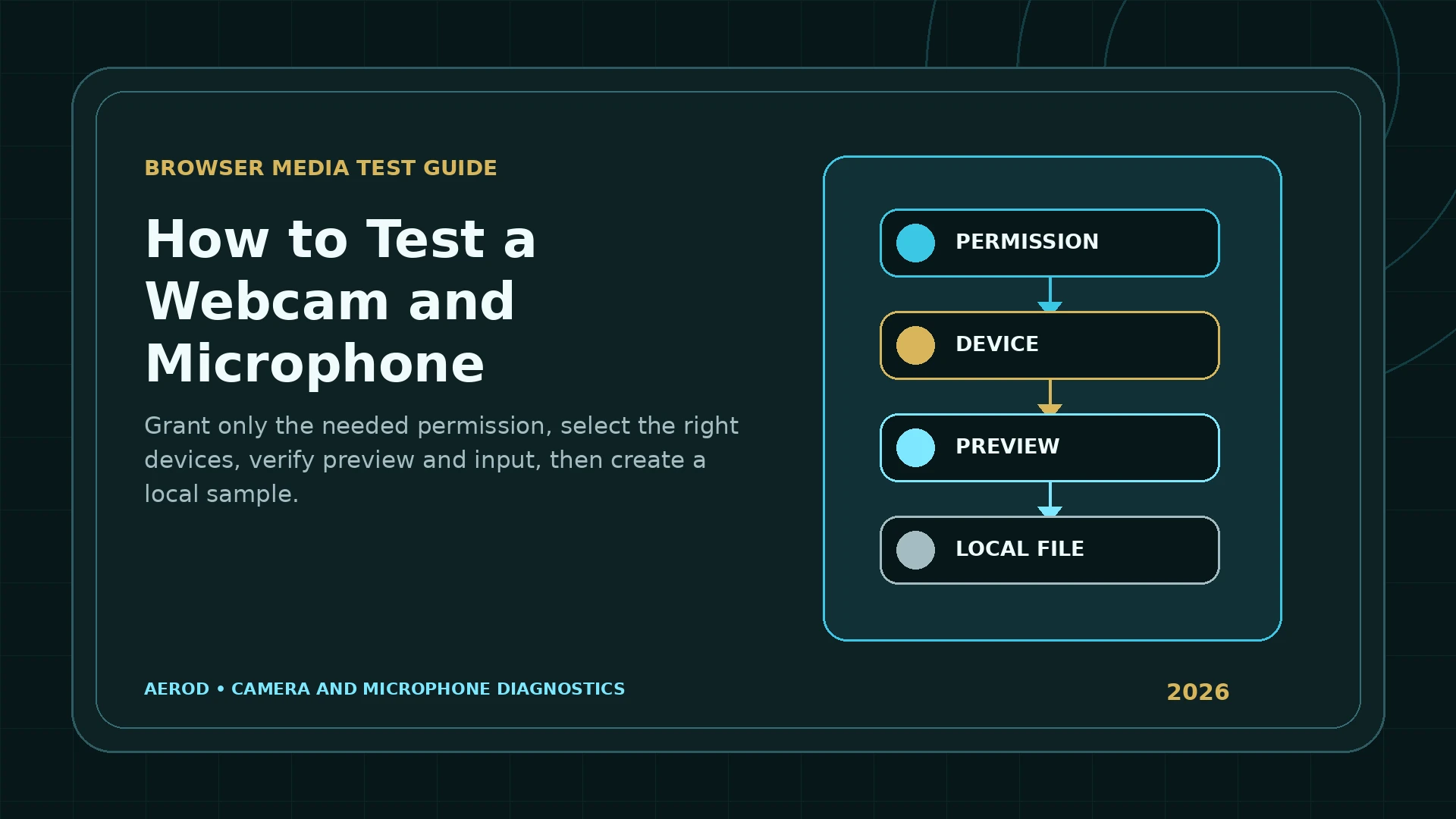
A browser webcam and microphone test should answer four separate questions: can the page receive permission, can it open the intended devices, does the camera or microphone produce useful media, and can the browser create a local sample without an upload. Testing those layers separately makes failures easier to diagnose.
Quick procedure
Grant only the device access you need, select the intended input, and verify a live result before creating a sample.
Open Online Webcam Test over HTTPS. Start the camera and microphone independently. Confirm the correct device names, check the live preview and microphone meter, then create a local picture or short audio sample and play it back.
What the browser is doing
Web pages request camera and microphone tracks through the Media Capture and Streams API. The browser presents a permission decision before giving the page a MediaStream. That stream can contain a video track, an audio track, or both.
MDN documents two important security rules:
getUserMedia()is available only in a secure context such as HTTPS or localhost.- User permission is required before a site can receive camera or microphone media.
A browser test is therefore not equivalent to a native hardware diagnostic. It verifies the media path available to the current browser, profile, origin, operating system, and selected device.
Before starting the test
Remove avoidable causes before requesting access
- Connect the webcam, microphone, headset, or audio interface securely.
- Open a physical privacy shutter or lens cover.
- Disable hardware mute on the microphone or headset cable.
- Close meeting, recording, streaming, and camera-control applications that may hold the device.
- Confirm that Windows or macOS allows the browser to use camera and microphone devices.
- Use the browser profile that will run the real call or recording.
- Load the test over HTTPS.
- Decide whether you need camera, microphone, or both before granting access.
Step 1: Request camera access
- Open the Online Webcam Test.
- Start the camera test.
- When the browser prompts, allow camera access for Aerod.
- If the browser offers a device selector, choose the intended webcam.
- Wait for the preview to appear.
A successful preview proves that this browser page received a usable video track from the selected source. It does not prove that every meeting app or browser profile has the same permission.
When this preview works but your call does not, stop the browser test to release the camera, then follow the webcam guide for Zoom or Teams failures to check the meeting app's selected device and permissions.
What to inspect in the preview
- Framing: verify the intended camera and field of view.
- Orientation: confirm the image is not unexpectedly rotated.
- Exposure: check whether the face or subject is visible in normal lighting.
- Focus: allow autofocus time and clean the lens.
- Motion: look for severe freezing, repeated frames, or long delay.
- Resolution and aspect: review the device details returned by the app when available.
The browser can return a resolution near the requested preference rather than the camera's maximum. MDN notes that plain constraint values are treated as ideals, while exact or minimum constraints can cause a request to fail when no device satisfies them.
Step 2: Request microphone access
- Start the microphone test separately.
- Allow microphone access when prompted.
- Select the intended microphone if more than one appears.
- Speak at a normal distance and volume.
- Watch the level meter respond.
A moving meter shows that the page is receiving changing audio samples. It does not establish recording quality by itself. A signal can be too low, distorted, clipped, noisy, or captured from the wrong device.
What to inspect in the microphone test
- Hardware mute: verify physical switches and headset controls.
- Selected input: distinguish a laptop microphone, USB interface, webcam microphone, headset microphone, and virtual device.
- Level: ordinary speech should move the meter without remaining at zero or maximum.
- Noise: pause speaking and observe the background level.
- Distance: test from the actual speaking position.
- Playback: create a short local recording and listen through the expected output device.
Why device names may be blank before permission
The browser can enumerate available media devices, but privacy rules limit what a page can learn without consent. MDN states that non-default devices can be omitted when permission is not granted, and the label field can be an empty string until a media stream is active or persistent permission exists.
This behavior reduces passive fingerprinting. A site should not be able to learn the exact names of every camera, microphone, and headset merely because the page loaded.
After permission is granted:
- Refresh the device list.
- Select the intended camera or microphone.
- Stop the previous stream before switching if the camera does not change cleanly.
- Restart the selected test.
Test camera and microphone independently
Requesting both devices at once can make a partial failure look like a complete failure. If the camera is missing but the microphone works, a combined request can reject because the required video track is unavailable.
Aerod lets you start and stop camera and microphone separately. This is useful when:
- The device has no webcam.
- The microphone is denied but video is needed.
- The camera is denied but audio needs testing.
- One driver is busy in another application.
- You want to minimize granted permissions.
Create a local picture
A browser can draw a current video frame into a canvas and create a local image file. In Aerod, the picture remains in the browser unless you choose to download it.
Use a picture test to verify:
- The captured frame matches the live preview.
- The image is not fully black or corrupted.
- The expected orientation and aspect ratio are preserved.
- The browser can create and download the local file.
A successful picture does not prove that another service will use the same resolution or encoding. Each site can request different constraints.
Create a short local audio sample
The MediaRecorder API records a supplied MediaStream. Browser support is broadly available, but the container and codec can vary. MDN warns that not every codec works in every container and browser.
Record five to ten seconds:
- Say a short sentence at normal volume.
- Pause for a second to capture the noise floor.
- Stop the recording.
- Play it back.
- Download it only when you need a local copy.
Listen for clipping, low level, hum, fan noise, echo, Bluetooth profile changes, or the wrong input source.
Browser and operating-system permission layers
| Layer | What it controls | Typical symptom when blocked |
|---|---|---|
| HTTPS / secure context | Whether the media API is available | No request or immediate security-related failure |
| Site permission | Whether this origin may use camera or microphone | Denied prompt or saved block |
| Browser default | Whether sites may ask and which device is preferred | No prompt, wrong default, or blocked requests |
| Operating system | Whether the browser application can access the hardware | Permission appears allowed in the browser but access still fails |
| Enterprise policy | Administrator-enforced browser or device settings | Controls unavailable or locked |
| Device availability | Hardware connection, driver, exclusive use, and mute state | Missing device, black video, or silent audio |
How to reset permission after blocking it
- Chrome: use the site-information control or Settings → Privacy and security → Site settings → Camera or Microphone.
- Edge: review site permissions and Windows camera or microphone privacy settings.
- Firefox: use the address-bar permission icon or Privacy & Security → Permissions.
- Safari on Mac: use Safari → Settings → Websites → Camera or Microphone, and review macOS Privacy & Security.
Reload the page after changing permission. A saved denial can prevent the browser from presenting another prompt until the site decision is cleared.
Privacy boundaries
Camera and microphone access is sensitive. Browsers require indicators when media devices are in use. Grant access only to a site and session you intend to test.
Aerod's webcam test is designed so that:
- The live camera and microphone streams stay in the browser.
- A picture is created locally.
- A short audio sample is created locally when MediaRecorder is supported.
- A file leaves the page only when you choose to download it.
- You can stop each stream independently.
Close or stop the test when finished so the browser releases the tracks. Review the camera or microphone indicator before leaving the page.
When a test fails
Use the symptom to choose the next guide:
- For a black, missing, busy, or wrong camera, use Webcam Not Working in a Browser.
- For a saved denial or no permission prompt, use Browser Camera Permission Blocked.
- For a missing or silent input, use Microphone Not Detected in a Browser.
- For a broader permission inventory, use Browser Permission Audit.
FAQ
Does a browser webcam test upload my camera or microphone media?
Aerod's test keeps the live streams, picture, and short audio sample in the browser. A generated file leaves the page only when you choose to download it.
Why does the browser ask for camera and microphone permission?
The browser requires explicit user permission before a site can receive camera or microphone tracks through getUserMedia. You can allow one device, both devices, or neither.
Why are camera or microphone names missing before I allow access?
Browsers can hide non-default devices and return empty labels before permission to reduce fingerprinting and privacy exposure. Device names usually become available after access is granted.
Can I test the webcam without enabling the microphone?
Yes. Aerod starts and stops the camera and microphone independently, so you can test only the device you intend to use.
What should I verify in a microphone test?
Confirm the selected input, hardware mute state, visible level response, operating-system input level, and a short local recording played back through the expected output device.
Why can a recorded file format differ between browsers?
MediaRecorder support and available containers or codecs vary by browser and platform. The browser chooses or accepts a supported media type for the current device.
Sources checked
- MDN: MediaDevices.getUserMedia()
- MDN: MediaDevices.enumerateDevices()
- MDN: MediaDeviceInfo.label
- MDN: MediaRecorder
- Google Chrome Help: Use your camera and microphone
- Mozilla Support: Manage camera and microphone permissions
- Microsoft Support: Windows camera, microphone, and privacy
- Apple Support: Change Websites settings in Safari