If your webcam works in a browser test but not in Zoom or Microsoft Teams, first close the test and select that same camera inside the meeting application. Then check permission for the meeting app itself. Permission granted to a browser does not automatically grant access to a separate desktop program.
This guide starts with a working browser preview. If the camera also fails there, use the separate browser webcam troubleshooting guide. Keeping those two starting points separate avoids replacing a driver before checking a simple application setting.
Review update — September 8, 2026: Refreshed Zoom and Teams navigation and operating-system permission instructions against current official documentation. Older Windows and macOS paths are identified separately below.
What a successful browser test proves
A moving preview establishes that the selected device supplied video to that browser under the conditions of the test. It is useful evidence against a completely disconnected camera. It does not prove that Zoom or Teams selected the same source, has permission to use it, can open it simultaneously, or is transmitting video into a meeting.
Browser capture also has its own settings and constraints. The W3C Media Capture and Streams specification distinguishes a source from the tracks and settings requested by its consumers. Two applications can ask the same camera to operate differently.
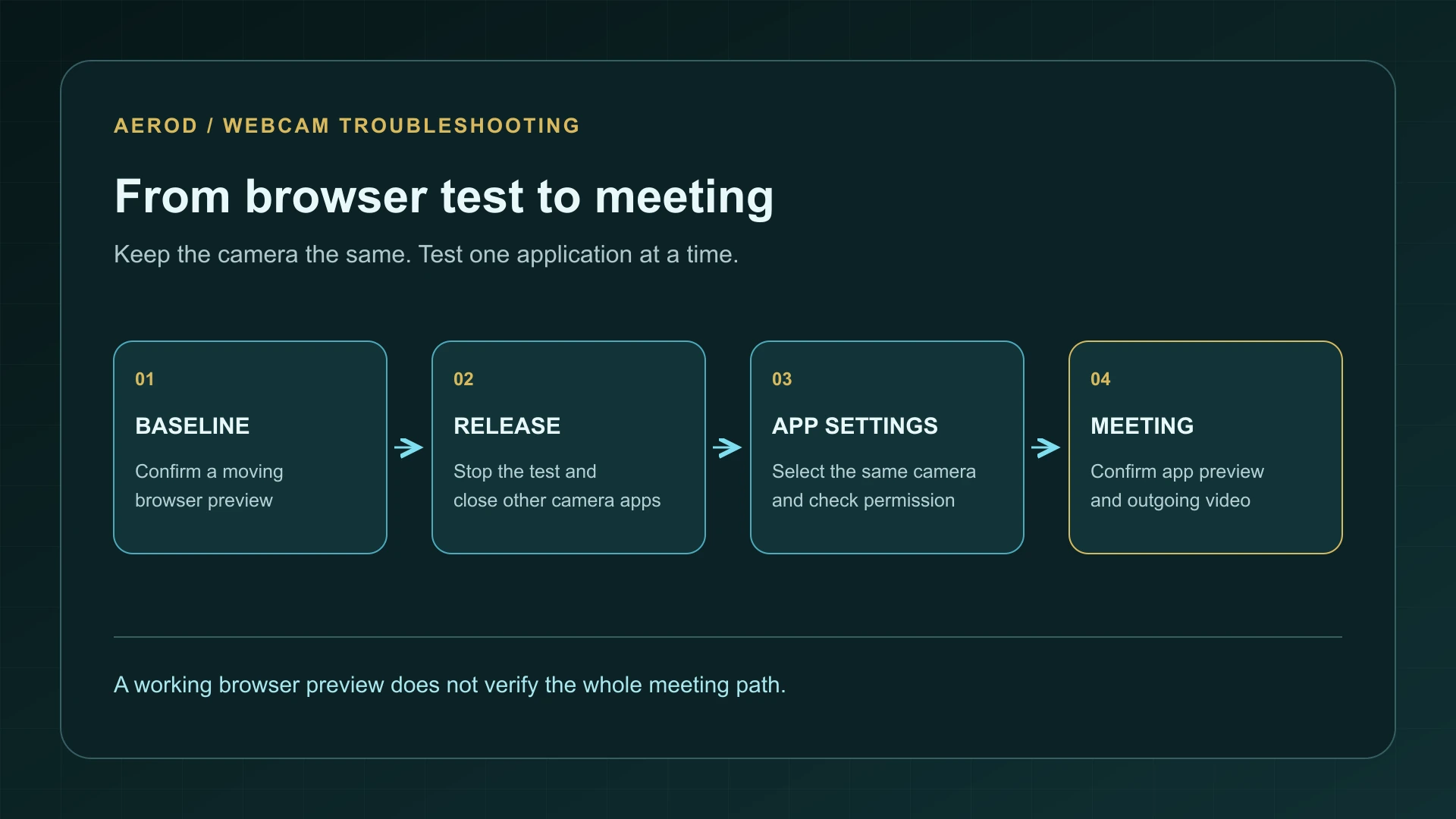
Run a controlled handoff
- Open Online Webcam Test, select the intended camera, and confirm that the picture responds when you move.
- Note the device's displayed name. A laptop can offer an internal camera, an external USB webcam, and a virtual source.
- Stop the test and close its tab. Quit other camera, recording, and meeting applications.
- Open only the meeting application you want to diagnose.
- Select the same device and check its own preview before joining a call.
Do not leave the working test running as a permanent comparison. It may be another consumer competing for the device. A browser window that is hidden behind the meeting app can still contain an active camera tab.
Follow the symptom inside the meeting app
On narrow screens, scroll the table horizontally.
| Meeting-app result | Next check | What it does not establish |
|---|---|---|
| The camera is absent from the list | Device selection, application permission, reconnecting the USB device | That the hardware is broken |
| The camera is listed but cannot start | Other camera consumers and restarting the app | That another application released its capture session |
| The picture is black or shows an unexpected scene | Selected physical versus virtual camera, shutter, and lighting | That the app is using the camera tested in the browser |
| The app preview works but other people see no video | Start-video control, meeting restrictions, and meeting connectivity | That the outgoing meeting stream works because local capture works |
Check Zoom's selected camera
In the Zoom desktop app, open your profile picture, choose Settings, and select Video & effects. Choose the physical camera that passed the browser test and check its preview. Zoom's video-testing instructions also describe the in-meeting path: open the arrow beside Video, choose Video settings, and select the camera from its dropdown. Check whether video is stopped rather than assuming a missing picture is a capture failure.
If Zoom lists a virtual camera, compare it with the physical webcam. A virtual source may require a separate application and an active scene. Selecting it without that upstream setup can produce a blank picture even while the physical camera works.
If the selected camera still fails, repeat the controlled handoff with other camera users closed and check operating-system permission below. Restart Zoom after correcting those settings. Escalate to vendor support or a manufacturer driver check only if the focused checks do not resolve the failure.
Check Teams separately
In the Teams desktop app, use Settings and more (the three-dot menu near your profile picture), then Settings and Devices. Microsoft's device-settings instructions use this menu, not the profile menu itself. Check the selected camera and the preview before joining a meeting instead of relying on the device another program remembered.
For a work or school desktop account, look for Make a test call under the audio settings in Devices. Microsoft's camera troubleshooting guidance describes this additional microphone, speaker, and camera check, but says it is unavailable in Teams on the web. If the control is absent, use the camera preview; absence alone does not demonstrate a camera fault.
For a personal account in Teams Free on desktop, Microsoft's Teams Free device guide documents the camera dropdown under Devices. During a call, use More, Video effects and settings, then the Settings tab to choose the video device. Do not assume the work or school test-call control is present in every Teams edition.
Check the permission that belongs to the failing app
Windows 11
Open Settings, Privacy & security, Camera. Check Camera access, then the access control appropriate to the meeting app. For a listed Microsoft Store app, review Let apps access your camera and its individual switch. For a desktop installation, review Let desktop apps access your camera; this is a shared desktop-app control, not a separate switch for each program. Microsoft's camera-permission guide explains the distinction. Ask your administrator if a required control is locked.
Windows 10
On Windows 10, the path is Settings, Privacy, Camera. Review Camera access for this device and Allow apps to access your camera. For desktop meeting software, also check Allow desktop apps to access your camera. These older labels differ from Windows 11; an allowed website cannot override an operating-system block on the program opening the device.
macOS
On current macOS, open the Apple menu, System Settings, Privacy & Security, then Camera. Apple's camera-access instructions describe the per-app switches. Check Zoom or Microsoft Teams, not only your browser. The list contains installed apps that have requested access; try opening the meeting app's preview if it has not requested permission yet.
On macOS Monterey 12, the older path is System Preferences, Security & Privacy, Privacy, Camera. Quit and reopen the affected application after changing permission so you can retest from a known starting point.
Meeting in a browser
Check the camera permission for the actual meeting website. A permission decision belongs to a site; allowing Aerod's test is not the same as allowing the meeting's origin. If you cannot find or change the decision, the blocked camera-permission guide helps separate site controls from managed restrictions.
When preview works but the meeting does not
Keep local capture and delivery separate. Check that video is enabled in the meeting and ask whether a host or administrator has restricted it. If the other participant sees a frozen image, record whether your own preview also freezes. Compare a second meeting or the application's test facility without changing the camera at the same time.
That sequence narrows the report: a preview failure concerns opening or rendering the camera; an otherwise working preview with no outgoing video points toward the meeting path. It is a diagnostic distinction, not proof of a particular network fault.
Know when to ask for help
On a managed computer, do not remove security software or bypass organization policies. Give IT or vendor support the operating system, application version, selected camera name, permission state, and whether the camera works in a browser with every other camera app closed. Describe exactly where the image disappears.
If the camera stops working in every application, return to cable, shutter, hardware, and manufacturer support checks. For a working camera with a separate audio problem, use microphone troubleshooting rather than treating video and microphone access as the same permission.
FAQ
Does passing a webcam test prove Zoom or Teams should work?
No. It confirms capture in that browser, not the meeting application's device choice, permission, or outgoing video path.
Should I leave the browser test open while checking Zoom?
Stop the camera and close the test first. Depending on the application and driver, another active consumer can prevent the meeting app from opening the camera.
Why can the meeting preview work while other people see no video?
Local preview and outgoing meeting video are different stages. Check the start-video control, meeting restrictions, and connection before changing camera drivers.