If internet access stops after you disconnect a VPN, check whether a persistent kill switch is deliberately blocking connections outside the tunnel. If that is not the cause, separate an ordinary network failure from a DNS or application-proxy problem before resetting anything.
This guide is for the specific situation where access works through the VPN but fails after disconnection. If you need to establish whether a connected tunnel changes your address, use the separate VPN IP-verification guide.
First decide whether direct access is acceptable
Close sensitive transfers and applications before testing without the VPN. Restoring a direct connection can expose the normal ISP address to services those applications contact. If your work requires the tunnel to remain active, reconnect the VPN or contact the administrator instead of disabling protection.
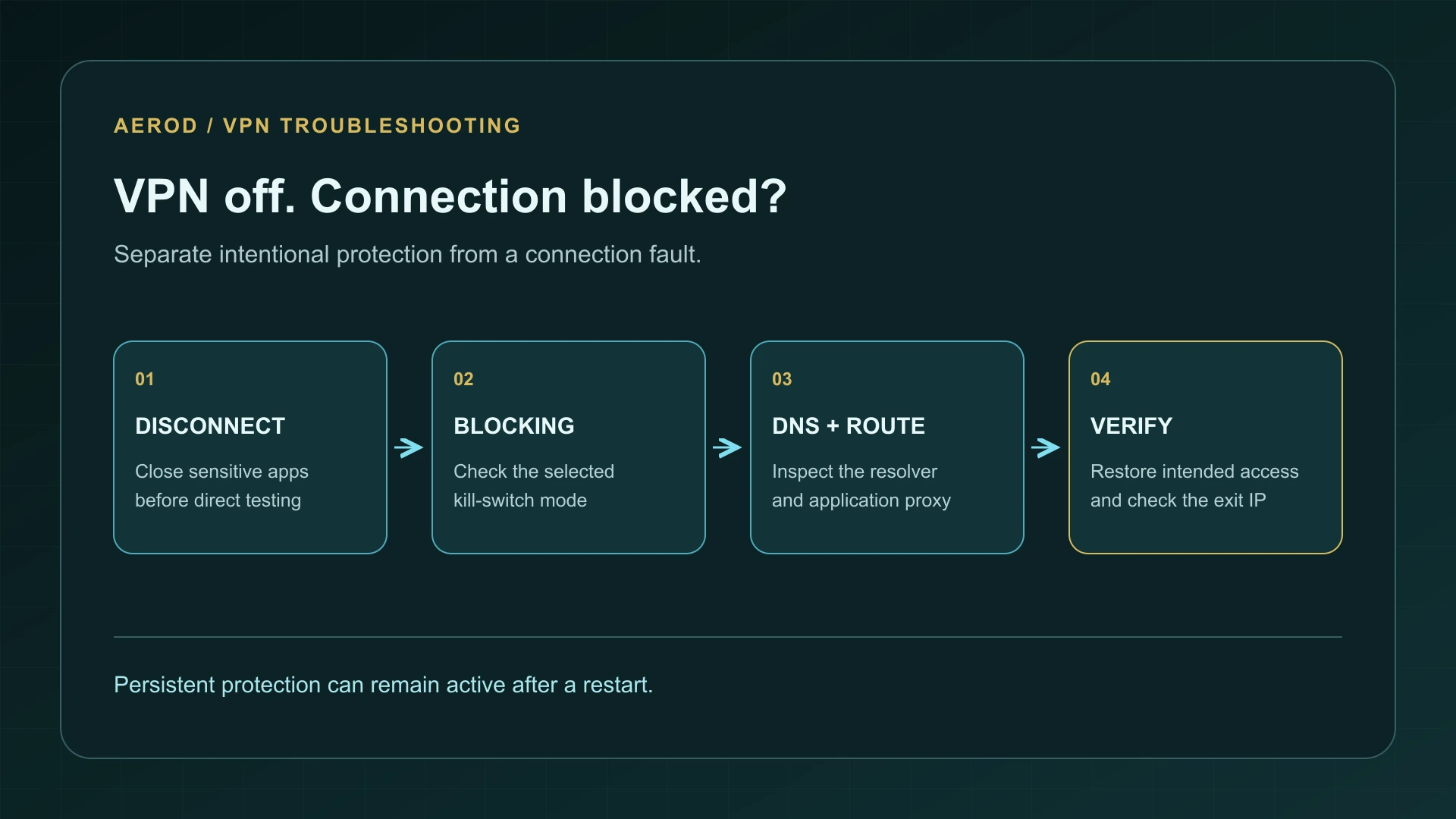
1. Check the selected kill-switch mode
A kill switch that reacts to an unexpected tunnel drop can behave differently from a mode that blocks every connection outside the VPN. The product's exact setting matters more than the generic term “kill switch.” Manual disconnection, quitting the app, and a network interruption are also different events.
Proton's November 2023 permanent kill-switch documentation describes protection that remains active after manual disconnection and restarts. In that mode, “VPN off, internet blocked” is expected behavior, not evidence that the provider damaged the connection.
Open the VPN application and inspect its kill-switch control. For the Proton interface described in that documentation, the quick-settings menu distinguishes Permanent Kill Switch from the regular setting and Kill Switch Off. Use the application's own control if you intentionally want a direct connection. Do not delete firewall rules to override the mode.
If reconnecting restores access, that is a useful clue, not a complete diagnosis. The tunnel can also supply a working DNS server or route that differs from the disconnected configuration.
2. Determine how much of the connection is broken
On narrow screens, scroll the table horizontally.
| Result | Investigate next | Important limitation |
|---|---|---|
| Access returns only when the VPN reconnects | Persistent protection, disconnected DNS settings, or routes | This pattern does not identify one cause by itself |
| Another device also cannot use the same network | Wi-Fi, router, captive portal, or ISP service | The VPN change may have coincided with a wider outage |
| Only one browser or program fails | That application's proxy, extension, or connection settings | A working app may use a different route or resolver |
| The device has network access but hostname lookups time out | The configured DNS server and whether it is reachable outside the VPN | A lookup test is not a full connectivity or leak test |
Try a small number of ordinary HTTPS pages, not repeated reloads of one failing service. Check whether Wi-Fi or Ethernet is connected. A browser's ability to display a previously loaded page does not prove a new network request succeeded.
3. Inspect DNS without changing it first
DNS translates a hostname into information needed to reach a service. A resolver intended to be reached through the tunnel may not answer once that tunnel is closed. A local VPN component can also be part of the lookup path. Inspect the actual adapter and resolver configuration rather than assuming that every VPN uses the same arrangement.
On Windows, this read-only lookup asks the configured default DNS server about Aerod:
nslookup aerod.netNote the server shown and whether it returns an answer or times out. Microsoft's September 2023 nslookup reference documents the default-server behavior and error categories. A server label of “Unknown” can concern the server's reverse name; examine whether the requested lookup actually succeeds.
A timeout can mean the resolver is unreachable or not responding. A nonexistent-domain answer is a different result. One successful lookup also does not prove the browser uses that exact resolver, or that every destination and address family works.
If an adapter was manually changed, restore the known pre-VPN configuration or use the VPN vendor's supported repair procedure. Automatic DNS is appropriate only where that was the intended network configuration. On a work network, keep its required resolver settings and ask IT before substituting a public resolver. The DNS leak guide explains why connectivity and DNS privacy are separate checks.
4. Check application proxies and competing network software
If the failure is limited to a browser, inspect whether it expects a proxy that stopped when a local VPN or routing application closed. Check the program's settings and any system proxy configuration it inherits. Do not remove an organization-managed proxy merely because you do not recognize its address.
Record whether another VPN, filtering application, or local proxy was running. Then use one supported configuration for the comparison. If Proxifier is involved, the application-routing troubleshooting guide helps identify which process and rule apply.
A VPN can legitimately alter routes and filters. That is why an indiscriminate network reset or uninstall is a poor first diagnostic step: it can remove useful evidence and change other working connections.
5. Recover through supported controls
- If you need protected connectivity, try reconnecting through the existing VPN application.
- If you intentionally want direct access, select the appropriate non-persistent or disabled kill-switch mode in the application.
- Reconnect the ordinary network connection and test again.
- If the app or its configuration appears stuck, follow the vendor's documented restart or repair process.
- If the app has been removed and blocking remains, contact its support team with the uninstall sequence rather than manually deleting network filters.
A restart is a useful state change, but it will not necessarily remove protection designed to persist. Similarly, flushing cached DNS records cannot make an unreachable DNS server reachable. Treat each action as a test with an expected result.
6. Verify the route after recovery
Once pages load again, use IP Lookup to check the browser's public address. For a direct connection, compare it with your ordinary ISP route. For a restored VPN connection, follow the before-and-after verification method and check the applications you actually use.
Re-enable the protections you intend to keep, then repeat a controlled connect/disconnect check with sensitive applications closed. Record the selected mode, the behavior after manual disconnect, and the behavior after an unexpected drop separately. Do not generalize one successful browser request to every application on the device.
FAQ
Can a VPN kill switch block internet after I disconnect?
Yes. A persistent or permanent mode can deliberately block connections whenever the VPN is not connected. Check the product's selected mode.
Will restarting always fix the problem?
No. Persistent protection can survive a restart. An incorrect or unreachable DNS configuration can also remain in place.
Should I delete firewall rules or disable all security software?
No. Start with the VPN application's supported controls and a focused diagnosis. Use vendor or administrator guidance if ordinary recovery does not work.