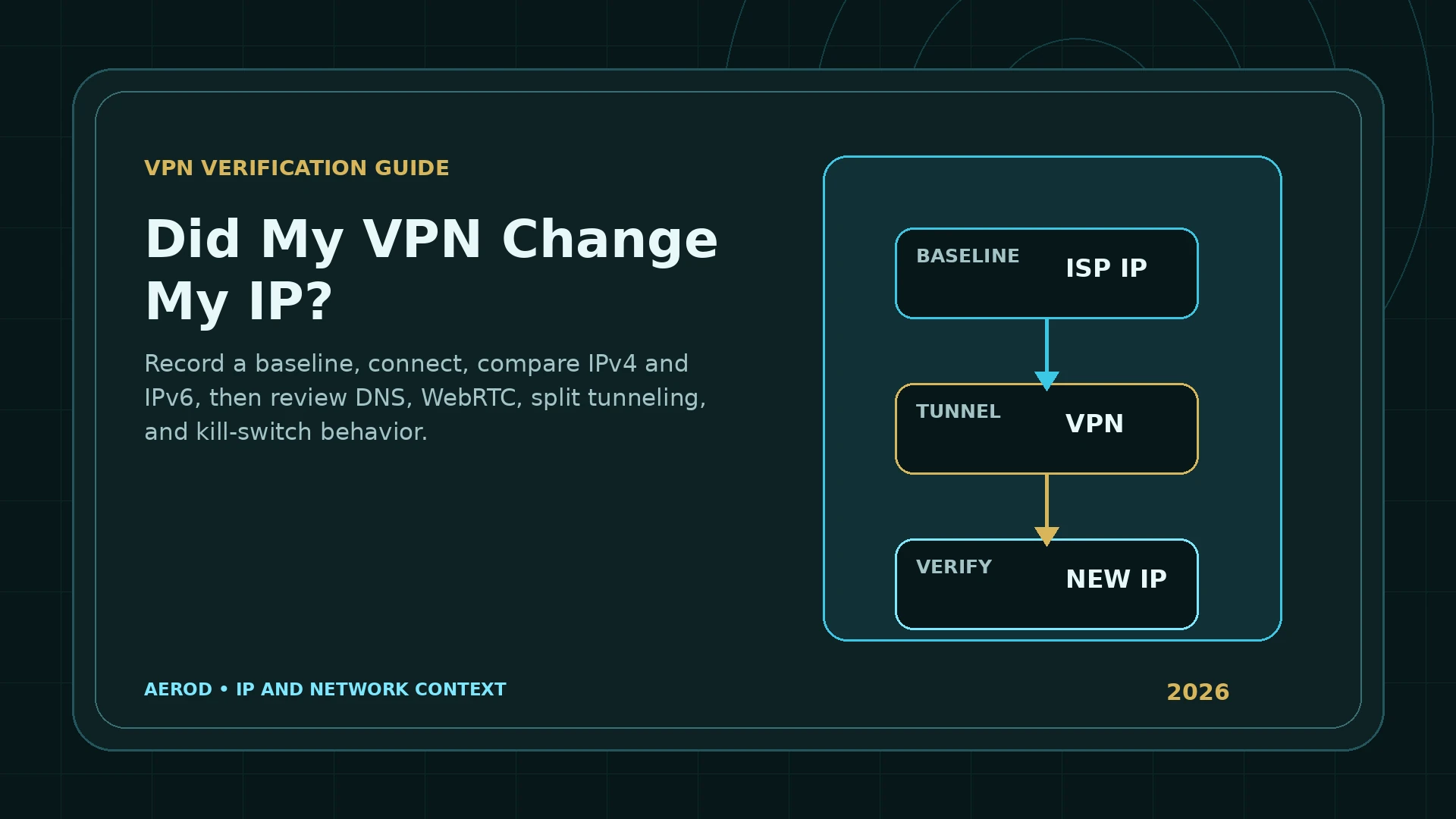
A VPN should replace the public route used by the connection it tunnels. The fastest check is a controlled before-and-after comparison: record the public IP while disconnected, connect to a VPN server, then repeat the same lookup from the same browser or application.
Quick answer
Compare the baseline and connected routes, then verify the parts that can bypass the tunnel.
Use IP Lookup before and after connecting. Compare IPv4, IPv6, ASN, organization, and location. Then run the WebRTC Leak Test and review DNS, split tunneling, and kill-switch behavior.
Step 1: Record the connection before enabling the VPN
- Disconnect the VPN.
- Open a fresh tab in the exact browser you will test.
- Open Aerod IP Lookup.
- Record the public IPv4 address.
- Record the public IPv6 address if one is available.
- Record the ASN, organization, country, region, and city.
- Note whether the route belongs to the expected ISP, mobile carrier, workplace, or other network.
This baseline is the route to compare against. Do not rely only on a remembered location or the name displayed by the VPN app.
Step 2: Connect to a clearly different VPN server
Choose a server in another country or region when possible. A visibly different location makes the comparison easier, although the database city may not exactly match the provider's server label.
Wait until the VPN application reports that the tunnel is connected. If the app supports multiple protocols, record the selected protocol so the test can be repeated consistently.
Step 3: Repeat the IP lookup
Reload or reopen the lookup from the same browser. A working tunnel for that browser should normally produce:
- A different public IP.
- An ASN or organization associated with the VPN or its infrastructure provider.
- A country or region consistent with the selected exit.
- No reappearance of the baseline ISP address for the tested IP family.
| Result | Likely interpretation | Next check |
|---|---|---|
| IPv4 and IPv6 both change | Both tested address families use the VPN route | Check DNS and WebRTC |
| IPv4 changes; IPv6 remains the ISP address | Possible IPv6 bypass or leak | Review VPN IPv6 support and configuration |
| Neither address changes | Browser may be excluded, tunnel is inactive, or the lookup is cached incorrectly | Check split tunneling, app status, and another browser |
| IP changes but location seems wrong | Database or virtual-location mismatch | Check ASN, organization, provider documentation, and another database |
| Browser changes; another app does not | Per-app or extension-based routing | Test each application separately |
Check IPv4 and IPv6 separately
A dual-stack device can use IPv4 and IPv6 at the same time. A tunnel that covers only IPv4 can appear successful in one lookup while IPv6 traffic continues through the ISP.
Proton VPN's public verification guidance specifically recommends comparing IPv4 and IPv6 and describes an unchanged IPv6 route as a possible IPv6 leak.
Check DNS behavior
A public IP test does not show which recursive DNS resolver handles domain-name queries. A VPN can change the web route while DNS requests still go to the ISP or another configured resolver.
When checking DNS:
- Connect to the VPN before starting the test.
- Use a server in another region to make obvious mismatches easier to spot.
- Compare returned DNS organizations with the baseline ISP.
- Remember that the VPN can use third-party infrastructure; the resolver name does not need to match the VPN brand.
- Review browser DNS-over-HTTPS settings, which can select a resolver independently of the operating system.
Aerod's DNS Leak Test Explained guide describes what a controlled resolver test can and cannot prove. The Aerod DNS Leak Test app remains planned until controlled resolver infrastructure is available.
Check WebRTC candidates
WebRTC can expose connection candidates that differ from the ordinary web request. Modern browsers often use mDNS hostnames instead of readable private addresses, but public or relay candidates can still reveal useful route context.
Run the WebRTC Leak Test after the VPN connects. Investigate any public candidate that matches the baseline ISP route.
Understand split tunneling
Split tunneling intentionally includes or excludes applications, destinations, or IP ranges. If the browser is excluded, an IP lookup in that browser should continue to show the ISP route even though another application uses the VPN.
Common split-tunneling arrangements include:
- Exclude selected apps from the VPN.
- Include only selected apps in the VPN.
- Exclude specific IP addresses or networks.
- Use a browser extension that tunnels only browser traffic.
- Route local-network destinations outside the tunnel.
Test the exact app, profile, and destination. A result from one browser does not prove the route used by a game, email client, torrent client, command-line tool, or background service.
For BitTorrent specifically, follow How to Bind qBittorrent to a VPN and Verify the Torrent IP. It checks qBittorrent's own interface selection and one private tracker announce instead of relying on the browser result.
Test the kill switch
A kill switch is intended to block traffic when the VPN connection drops. Standard and advanced modes can behave differently. Some products activate the kill switch only after an accidental disconnect; others require all traffic to remain blocked unless the VPN is connected.
Verify without exposing a sensitive session
- Close real accounts and sensitive applications.
- Record the baseline ISP IP.
- Connect the VPN and confirm the VPN IP.
- Enable the intended kill-switch mode.
- Interrupt the VPN connection.
- Check whether internet traffic stops or falls back.
- Reconnect and repeat after a server switch or device restart where relevant.
If disconnecting leaves you without access, use the no internet after VPN disconnection checklist to separate persistent kill-switch blocking from DNS and application-proxy problems.
Why the VPN city can look wrong
IP geolocation is approximate. A server labelled for one city can use an address block registered elsewhere, a virtual location, a remote hosting partner, or recently reassigned space. Read Why Is My IP Location Wrong? before treating a city mismatch as proof that the VPN failed.
What a changed IP proves
- The tested request reached a different public exit.
- The VPN or proxy route applied to that browser and address family for that request.
- The baseline ISP address was not used as the ordinary source address for that lookup.
What a changed IP does not prove
- Every application uses the VPN.
- IPv4 and IPv6 are both covered.
- DNS uses the intended resolver path.
- WebRTC exposes no conflicting candidate.
- The kill switch works during a drop.
- Browser fingerprint, cookies, timezone, language, and account state match the exit.
- The VPN provider keeps no logs or meets a specific privacy claim.
Full VPN route checklist
Verify the connection layer by layer
- Baseline IPv4.
- Baseline IPv6.
- Connected IPv4.
- Connected IPv6.
- ASN and organization.
- Country and region.
- DNS resolver path.
- WebRTC candidates.
- Split-tunneling rules.
- Kill-switch behavior.
FAQ
What should change when a VPN is working?
The public IP and usually the ASN or organization should change from the ISP route to the VPN exit. The expected location should match the selected server closely enough for the provider's routing model.
Does a different IP prove that every app uses the VPN?
No. Split tunneling, browser extensions, per-app routing, IPv6, and system services can use different paths. Test the exact app and both IP families.
What if my IPv4 changes but IPv6 does not?
The VPN may not be tunneling IPv6, or the test may be using a different route for IPv6. Treat that as a possible IPv6 leak and review the VPN's IPv6 support and configuration.
Why does the VPN location not match the server label exactly?
Geolocation databases can be stale or approximate, and providers can use virtual or remotely hosted locations. Check the ASN, organization, country, and provider documentation rather than relying on one city label.
How do split tunneling and browser extensions affect the test?
Split tunneling can exclude the browser or lookup destination from the VPN. A browser extension can tunnel only browser traffic while other applications keep using the ISP route.
Should I test the VPN kill switch?
Yes. After confirming the VPN route, interrupt the connection in a controlled way and verify whether traffic stops or falls back to the ISP address according to the selected kill-switch mode.