A browser leak test should answer a practical question: does the current browser session expose information that conflicts with the route and privacy setup you intended? A correct public IP is only the first check. WebRTC candidates, browser storage, permissions, fingerprinting characteristics, timezone, language, and DNS behavior can reveal a different story.
Aerod separates those checks into focused tools. That makes each result easier to understand and prevents one all-in-one score from pretending to prove anonymity.
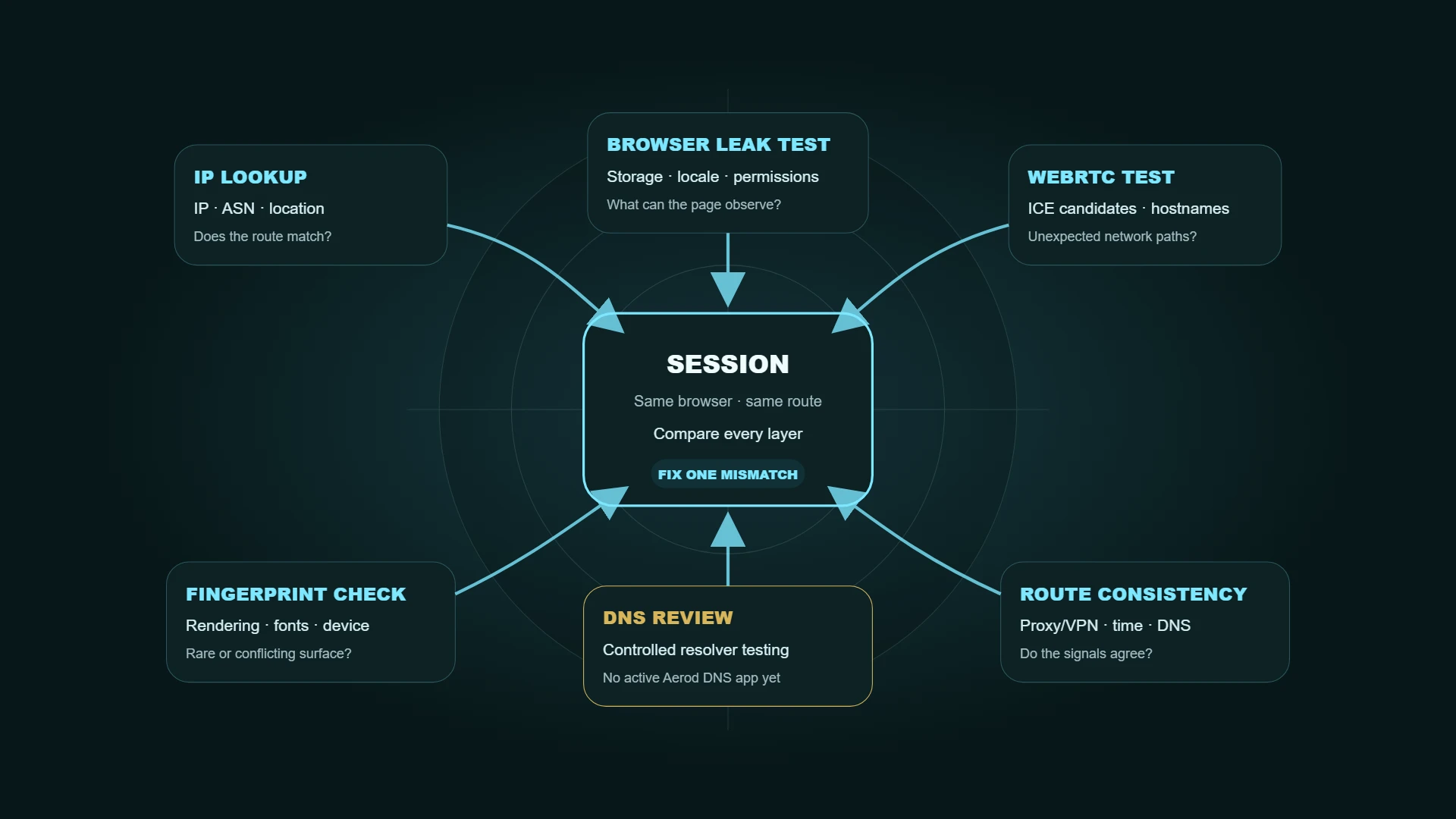
Quick answer: what should you test?
| Layer | Aerod tool or method | What to look for |
|---|---|---|
| Public route | IP Lookup and What's My IP | Expected IP, ASN, organization, country, region, and approximate location |
| Browser exposure | Browser Permissions & Privacy Settings Check | Locale, timezone, storage, permissions, privacy controls, and browser-visible signals |
| WebRTC | WebRTC Leak Test | Public, private, hostname, or mDNS-obfuscated ICE candidates |
| Fingerprinting | Browser Fingerprint Check | Rendering, WebGL, audio, fonts, Client Hints, device clues, and inconsistencies |
| Route consistency | Proxy/VPN Detection | Whether IP, route class, browser, timezone, DNS, WebRTC, and expectation agree |
| DNS | Resolver review outside Aerod's current app set | Whether DNS requests follow the VPN/proxy/resolver path you intended |
Aerod does not currently publish a working DNS Leak Test route. Do not treat a planned card or a browser-only guess as a full DNS test. A meaningful DNS leak test needs controlled resolver infrastructure that can observe which resolver receives a unique test query.
What is a browser leak?
A browser leak is an observable signal that reveals more than you expected or contradicts the route you intended. Not every visible value is a vulnerability. Screen size, language, or local storage support are normal browser features. The problem is context: a VPN set to one country with a browser timezone, DNS resolver, and account history tied to another can produce an inconsistent session.
Useful categories include:
- IP leak: a website sees the original or an unexpected public IP.
- WebRTC exposure: ICE candidates reveal public, local, hostname, or route information that conflicts with expectations.
- DNS mismatch: resolver traffic uses an ISP or network path outside the intended VPN or resolver configuration.
- Browser-state exposure: cookies, storage, permissions, locale, and profile history carry old context into a new route.
- Fingerprint mismatch: browser and device characteristics do not fit the claimed environment or remain recognizable across sessions.
- Proxy/VPN mismatch: route classification, ASN, timezone, language, DNS, WebRTC, and the user's selected expectation disagree.
Step 1: establish a baseline
Before connecting a VPN or proxy, record the ordinary session:
- Open IP Lookup and note the public IP, ASN, organization, and approximate location.
- Run the Browser Permissions & Privacy Settings Check and note timezone, language, storage, permissions, and privacy-control findings.
- Run the WebRTC Leak Test and record the candidate types shown.
- Run the Browser Fingerprint Check and note the high-level rendering, device, locale, and consistency findings.
- Save only what you need for comparison. Do not create a permanent fingerprint database.
The baseline helps you tell the difference between an existing browser characteristic and a new mismatch introduced by the VPN, proxy, profile, or resolver change.
Step 2: connect the intended route
Connect the VPN, proxy, Tor Browser session, Private Relay, or alternate network. If you are using a proxy, make sure the exact browser or application is routed through it. If you are using Proxifier, check that the specific executable matches the rule and that Default remains direct when only one app should use the proxy.
Reload the tools from the same browser profile. Do not compare one browser's IP with another browser's WebRTC result and assume they represent the same path.
Step 3: interpret the IP result
A good IP result should match the route you intentionally selected:
- the visible IP changed when expected
- the ASN or organization belongs to the expected provider or network class
- the approximate country or region is plausible
- the IP version matches the connection you meant to test
An IP lookup is approximate. It can identify an ISP, VPN, proxy, carrier, business network, or cloud egress rather than a precise device location.
A changed IP does not prove that every application uses the route. Split tunneling, app exclusions, browser proxy settings, and per-app rules can produce different results across the device.
For qBittorrent, use the separate VPN binding and torrent-IP verification workflow to check the client's own route. The browser result cannot establish which interface the torrent client uses.
Step 4: interpret WebRTC candidates
WebRTC uses ICE candidates to discover possible connection paths for real-time communication. The current W3C WebRTC Recommendation notes that candidate addresses can expose location or local-network topology and contribute to fingerprinting. RFC 8828 also documents cases in which split-tunnel VPNs or classical application proxies can leave a direct WebRTC route visible. Modern browsers may replace local addresses with mDNS hostnames, but behavior varies by browser, operating system, permissions, network, VPN, and policy.
Use the WebRTC Leak Test to classify what the current session returns:
- Public-looking candidate: review whether it matches the expected VPN or proxy route.
- Private/local address: may be normal on a local network, but decide whether the page needed to see it.
- mDNS hostname: local address is obscured, but candidate behavior still contributes context.
- Relay-only candidate: often reduces direct-address exposure, but does not prove broader anonymity.
- No candidate returned: can reflect browser policy, network behavior, disabled WebRTC, or a failed test—not automatically a perfect result.
If you rely on calls or collaboration software, do not disable WebRTC blindly. Review browser and VPN leak-protection settings, then retest the actual use case.
Step 5: interpret browser exposure
The Browser Permissions & Privacy Settings Check focuses on ordinary browser-visible context: identity hints, locale, timezone, storage, permissions, tracking controls, and practical fixes. It does not gather WebRTC candidates or run the deeper fingerprint test.
Look for:
- a timezone that contradicts the intended region
- unusual language combinations
- unnecessary permissions
- persistent storage in a profile meant to be clean
- privacy controls that are disabled or unavailable
- a large extension or customization footprint
- browser values that conflict with the operating system or route
A visible signal is not automatically a breach. The goal is to remove unnecessary exposure and avoid contradictory context.
Step 6: interpret the fingerprint surface
The Browser Fingerprint Check goes deeper into characteristics that can support recognition: Canvas, WebGL, audio, fonts, screen geometry, Client Hints, device capabilities, storage, permissions, and consistency.
Do not chase a perfect or completely empty fingerprint. W3C's guidance says complete elimination of browser fingerprinting through widely deployed technical means is implausible. Use the result to identify rare combinations, contradictory values, and unnecessary customization.
For the underlying mechanics, read Browser Fingerprinting Explained.
If two runs disagree, use the fingerprint change comparison guide to identify which fields changed before interpreting the combined identifier.
Step 7: review proxy or VPN consistency
Use Proxy/VPN Detection as an explanation layer. Select the route you expect—direct connection, VPN, residential proxy, ISP/static residential proxy, datacenter proxy, mobile proxy, or unknown—then review whether the surrounding signals make sense.
Examples:
- A datacenter ASN is expected when you intentionally use a datacenter proxy.
- A residential-looking IP paired with a distant timezone and stale account cookies may still be inconsistent.
- A VPN IP with WebRTC candidates from another route needs review.
- A mobile proxy paired with a desktop browser is not automatically wrong, but the workflow should explain why that combination exists.
Detection is probabilistic. No public tool can prove how every anti-abuse or fraud system will classify the session.
DNS leaks and resolver mismatches
DNS converts hostnames into IP addresses. A VPN may provide its own resolver, send DNS through the tunnel, or allow the operating system to use another resolver. A proxy may not cover DNS unless the app and protocol are configured for remote name resolution.
A real DNS leak test usually creates unique DNS names under infrastructure controlled by the test operator, then records which resolver asks for them. Without that controlled observation point, a page can provide guidance but should not claim a complete DNS test.
Review:
- the VPN client's DNS and leak-protection settings
- operating-system resolver configuration
- browser encrypted-DNS settings
- Proxifier name-resolution mode if Proxifier is involved
- whether split tunneling or another app bypasses the route
- provider-specific support documentation
RFC 8484 specifies DNS over HTTPS, but using DoH alone does not guarantee that the resolver matches a VPN or proxy route. It changes the transport and resolver choice; the surrounding network configuration still matters.
Test normal, private, and clean profiles correctly
Incognito or private browsing is useful as a comparison because it starts with less existing cookie and storage state. It does not hide the public IP or make the user invisible to websites, employers, schools, internet providers, or network administrators.
Use three comparisons when practical:
- everyday profile
- private-browsing window
- separate clean profile or browser
If the mismatch disappears only in the clean profile, cookies, extensions, storage, or profile configuration are likely part of the problem.
Workflow-specific checks
| Workflow | Test first | Common failure |
|---|---|---|
| VPN privacy | IP, DNS, WebRTC, browser exposure | Split tunnel, ISP resolver, WebRTC route, old profile state |
| Residential proxy browser | IP/ASN, timezone, language, cookies, WebRTC | Proxy works but browser context remains tied to another region or identity |
| ISP/static residential session | IP stability, ASN, DNS, WebRTC, account rules | Rotation or failover breaks session continuity |
| Datacenter proxy | Expected hosting ASN, IP, DNS, browser profile | Treating a correctly detected datacenter route as a “leak” |
| Mobile proxy | Carrier/ASN, device/browser consistency, WebRTC | Mobile route paired with unexplained desktop or regional signals |
| Regional QA | IP region, cache, language, timezone, DNS | Old cookies or cached content shows the wrong version |
| Research compartment | IP, storage, fingerprint consistency | One project contaminates another through profile history |
Use proxies and VPNs only where law, contract, employer policy, and platform rules allow them. A technically consistent session does not make a prohibited workflow acceptable.
Browser leak test checklist
- Record a baseline before changing the route.
- Run every test from the same browser profile and application path.
- Confirm the visible IP, ASN, and approximate location match expectations.
- Review WebRTC candidates after every VPN, proxy, browser, or network change.
- Compare timezone, language, storage, permissions, and account state with the route.
- Inspect the fingerprint surface for rare or contradictory combinations.
- Review DNS using controlled resolver tools and provider documentation.
- Change one setting at a time and retest before sensitive work.
What these tests cannot prove
| The tools can help show | They cannot guarantee |
|---|---|
| The public IP and route visible to the current page | Total anonymity across every site and application |
| WebRTC candidates returned in the current session | Future behavior under every call, permission, or network condition |
| Browser storage, locale, permission, and privacy-control signals | That no extension, malware, account, or server-side system can identify the user |
| A session-level fingerprinting surface | The exact fingerprint every third party will calculate |
| Proxy/VPN consistency clues | How a private fraud or anti-abuse model will classify the session |
| DNS guidance and configuration review | A full DNS leak test without controlled DNS infrastructure |
Common mistakes
Checking only the public IP
A correct IP is necessary but incomplete. Test WebRTC, browser exposure, fingerprinting, route consistency, and DNS separately.
Testing different browsers for different layers
Results from Chrome, Firefox, Tor Browser, and an embedded app may use different routes and settings. Test the exact environment you plan to use.
Treating Incognito as anonymity
Private browsing reduces local persistence; it does not hide the route or remove every fingerprinting signal.
Changing several settings at once
You will not know which change fixed or caused the issue. Make one change, rerun the relevant tool, and keep a short test log.
Randomizing fingerprint values
Uncoordinated spoofing can produce impossible combinations. Prefer coherent profiles and maintained browser protections.
Ignoring policy boundaries
A clean result is not permission to violate site rules, employer policy, account terms, or law.
Methodology
Aerod browser leak test sequence
- Establish a baseline before connecting a VPN, proxy, or alternate network.
- Verify the public route with IP Lookup.
- Review WebRTC candidates with the dedicated WebRTC test.
- Inspect browser exposure and fingerprint characteristics separately.
- Compare the observed signals with the route you expected.
- Review DNS through controlled resolver tools and configuration documentation.
- Fix one mismatch at a time and rerun the same test environment.
FAQ
Is a browser leak test the same as an IP leak test?
No. An IP test checks the public route. A browser leak workflow also reviews WebRTC, DNS, storage, permissions, locale, fingerprinting, and proxy/VPN consistency.
What is a WebRTC leak?
It is unexpected network information exposed through WebRTC ICE candidates. Whether a candidate is a meaningful leak depends on the route expected, browser behavior, VPN/proxy configuration, and the address or hostname returned.
What is a DNS leak?
A DNS leak usually means DNS queries use a resolver or path outside the one you intended, such as the ISP resolver instead of a VPN-provided or chosen encrypted resolver.
Does Aerod's browser privacy check include DNS testing?
No. Aerod's Browser Permissions & Privacy Settings Check does not test DNS. Aerod currently provides browser exposure, IP, WebRTC, fingerprint, and route-consistency tools. A full DNS test remains planned until controlled resolver infrastructure exists.
Does a clean result prove anonymity?
No. It only means the tested layers did not show an obvious mismatch in that session. Accounts, cookies, behavior, extensions, malware, server-side data, and other applications can reveal more.
How often should I test?
Retest after changing a VPN server, proxy, DNS configuration, browser, profile, extension set, operating system, network, or app-routing rule—and before relying on a sensitive session.