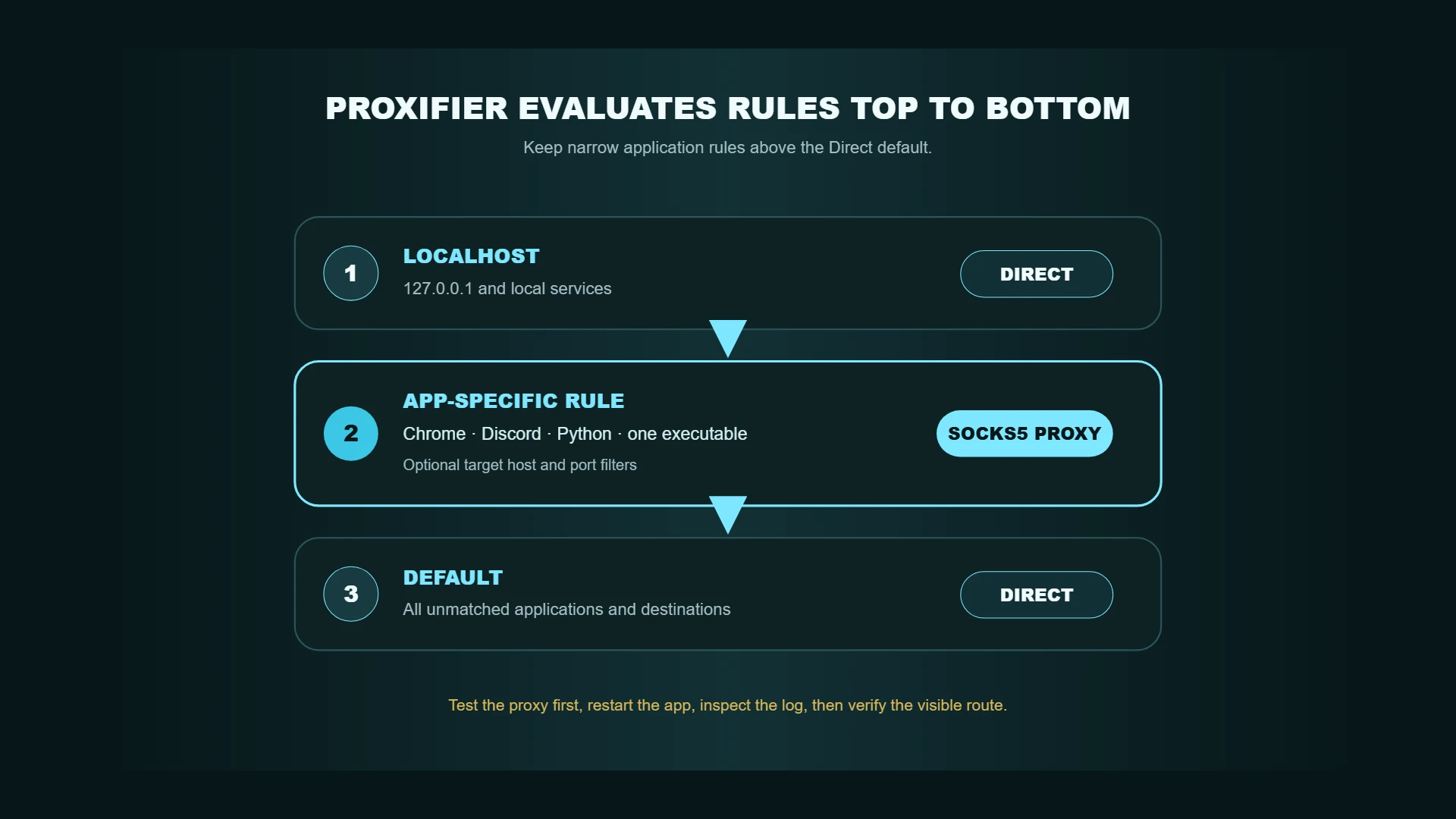
The safest Proxifier rule pattern is simple: keep Localhost direct, keep Default direct, then add one specific application rule above Default. That routes the selected program through a proxy while leaving the rest of the computer on its normal connection.
Proxifier's Windows documentation says rules are evaluated from top to bottom. A rule can match applications, target hosts or IP ranges, and target ports, then send matching connections through a proxy, a chain, a direct route, or a block action.
Quick rule pattern
- Open Profile → Proxy Servers and add a working SOCKS5 or HTTPS proxy.
- Test it with Proxy Checker.
- Open Profile → Proxification Rules.
- Keep Localhost enabled with the Direct action.
- Set Default to Direct.
- Add one rule above Default.
- Match the exact executable or executable path.
- Leave targets and ports as Any unless the rule should be narrower.
- Set the action to the proxy.
- Restart the app, inspect Proxifier's log, and verify the visible IP.
The resulting order should look like this:
1. Localhost                         -> Direct
2. Selected application             -> MY_SOCKS5_PROXY
3. Default                           -> Direct
Before creating rules
Use a proxy that already passes Proxifier's Proxy Checker. Record these details:
Proxy label: MY_SOCKS5_PROXY
Address: proxy.example.com
Port: 1080
Protocol: SOCKS5
Username: YOUR_USERNAME
Password: YOUR_PASSWORD
Confirm the protocol rather than relying on the port number. RFC 1928 defines SOCKS5, including its CONNECT command and domain-name address form. RFC 9110 defines HTTP CONNECT as a tunnel to a named host and port. Proxifier's current Windows documentation distinguishes its HTTPS/CONNECT option from plain HTTP proxies, which it limits to HTTP connections.
Use the proxy type selector if you have not decided between datacenter, residential, ISP/static residential, mobile, or a VPN. The Proxifier setup guide covers adding and testing the proxy before the rule examples below.
Proxifier supports application names with or without paths, semicolon-separated entries, wildcards, target hostnames, IPv4/IPv6 ranges, CIDR for IPv4, and port ranges. Blank application, target, or port fields are treated as Any for that criterion.
Rules you can adapt
| Use case | Rule name | Applications | Target hosts | Ports | Action |
|---|---|---|---|---|---|
| Chrome only | Chrome via SOCKS5 | Full Chrome executable path | Any | Any | MY_SOCKS5_PROXY |
| Discord only | Discord via SOCKS5 | Discord executable path or exact process name | Any | Any | MY_SOCKS5_PROXY |
| Python project | Project Python via SOCKS5 | Exact virtual-environment python.exe |
Any | Any | MY_SOCKS5_PROXY |
| Selected CLI tools | CLI tools via SOCKS5 | curl.exe;wget.exe;git.exe;node.exe |
Any | Any | MY_SOCKS5_PROXY |
| One desktop app | One app via SOCKS5 | Full executable path | Any | Any | MY_SOCKS5_PROXY |
| One app to one host | App to service | Exact executable path | service.example.com |
443 |
MY_SOCKS5_PROXY |
Example 1: route only Chrome
Use full executable paths when you want to avoid matching another Chromium-based browser or portable copy.
Name: Chrome via SOCKS5
Applications:
"C:\Program Files\Google\Chrome\Application\chrome.exe";
"C:\Program Files (x86)\Google\Chrome\Application\chrome.exe"

Target hosts: Any
Target ports: Any
Action: MY_SOCKS5_PROXY
Keep:
Localhost: Direct
Default: Direct
Close every Chrome window before testing. Chrome may keep background processes running, so confirm the process ended or restart it. Open IP Lookup in Chrome, then compare the result with a browser that is not included in the rule.
A Chrome rule changes routing. It does not clear cookies, storage, account state, WebRTC, timezone, or browser fingerprinting. Use the browser leak testing workflow to check those layers with the appropriate tools, including Proxy/VPN Detection for route consistency.
Example 2: route one Chrome profile
A normal rule matches the executable path or process, not the friendly name of a Chrome profile. Launching the same chrome.exe with different profile directories does not give Proxifier a reliable profile label to match.
The practical approach is to use a separate browser installation or executable path for the proxied profile:
Name: Dedicated Chrome via SOCKS5
Applications:
"C:\Browsers\ProxyChrome\Application\chrome.exe"

Target hosts: Any
Target ports: Any
Action: MY_SOCKS5_PROXY
If you cannot separate the executable path, the rule can affect every Chrome window using that executable. Do not assume a command-line --profile-directory argument alone creates a separately matchable Proxifier rule.
Example 3: route only Discord
Discord installations commonly use versioned directories or an updater/launcher. Find the executable path actually making the connection by checking Proxifier's Connections or log view.
Name: Discord via SOCKS5
Applications:
Discord.exe;
"C:\Users\YOUR_USER\AppData\Local\Discord\app-*\Discord.exe"

Target hosts: Any
Target ports: Any
Action: MY_SOCKS5_PROXY
Test sign-in, messaging, voice, updates, and media separately. A rule that catches the main client may not catch an updater or helper process. Add only the processes that genuinely need the proxy.
Example 4: route one Python project
Matching every python.exe can route unrelated scripts, IDE helpers, and background jobs. Match the virtual-environment interpreter for the project instead:
Name: Project Python via SOCKS5
Applications:
"C:\Projects\MarketMonitor\.venv\Scripts\python.exe"

Target hosts: Any
Target ports: Any
Action: MY_SOCKS5_PROXY
If the script starts another executable, that child process may need its own rule. Test the script with a simple permitted request and inspect the Proxifier log before running a larger job.
Example 5: route selected command-line tools
If you match powershell.exe or cmd.exe, traffic created by commands and child processes may not behave the way you expect. It is often cleaner to match the network tool itself:
Name: Selected CLI tools via SOCKS5
Applications:
curl.exe;wget.exe;git.exe;node.exe

Target hosts: Any
Target ports: Any
Action: MY_SOCKS5_PROXY
Use a full path if more than one version of the tool is installed.
Example 6: route one app to one destination
Rules can be narrower than the whole app. This example routes one program only when it connects to a specific host over HTTPS:
Name: One app to service
Applications:
"C:\Tools\ClientApp.exe"

Target hosts:
service.example.com;*.service.example.com

Target ports:
443

Action: MY_SOCKS5_PROXY
All other connections from that application fall through to the next matching rule. With Default set to Direct, unrelated destinations remain direct.
DNS and hostname rules
Proxifier can resolve hostnames through a proxy. Its documentation explains that remote resolution may use local placeholder addresses such as 127.8.*.*, because the real destination IP is not available to the local computer. IP-address-based rules do not work the same way in that mode.
For a first setup:
- leave automatic DNS detection enabled unless you have a specific reason to change it
- prefer hostname-based rules when remote name resolution is enabled
- inspect verbose logs when DNS behavior is unclear
- avoid mixing local and proxy resolution without documenting the intended path
- run a DNS-specific test when Aerod's dedicated DNS tool becomes available
Rule order and Localhost
Proxifier scans rules from top to bottom. Put the most specific rules first and broad rules later. The built-in Default rule catches everything not matched above it.
The Localhost rule normally keeps loopback traffic direct. Proxifier notes that some applications depend on local connections, so keep it enabled unless you know why traffic to 127.0.0.1 or the local computer must be proxied.
Proxifier rule review checklist
- Test the proxy in Proxy Checker before creating application rules.
- Disable the application's old built-in proxy configuration.
- Keep Localhost direct unless a documented workflow requires otherwise.
- Keep Default direct when only selected applications should use the proxy.
- Use the full executable path when process names are ambiguous.
- Match the project virtual-environment interpreter instead of every python.exe.
- Restart the application and confirm the matched process in Proxifier logs.
- Verify IP, WebRTC, browser, and route consistency from the routed app.
Troubleshooting
Everything is going through the proxy
Check the Default rule. If its action is the proxy, unmatched connections will use it. Change Default to Direct and keep the app-specific rule above it.
The app is still direct
Confirm the actual executable path and process name in Proxifier's connection log. Launchers, updaters, helpers, and child processes can differ from the app shortcut you clicked.
Every Chrome profile is proxied
The profiles probably share the same Chrome executable. Use a separate executable path or browser installation for the profile that needs a different route.
Discord opens but voice, updates, or media fail
Check whether helper processes use separate executables. Also confirm that the proxy supports the required connections and that the provider permits the use case.
Python still bypasses the proxy
Match the exact interpreter that executes the script. IDEs and virtual environments can use a different python.exe than the system installation.
The proxy works in a browser but fails in Proxifier
An ordinary HTTP proxy may not support HTTPS CONNECT tunneling. Proxifier recommends checking the protocol and using Proxy Checker. SOCKS5 or a proper HTTPS proxy is usually a better fit for general application routing.
DNS results do not match expectations
Review Profile → Name Resolution, inspect logs, and decide whether names should resolve locally or through the proxy. Remember that proxy-side resolution changes how IP-based rules behave.
Proxifier reports a connection loop
Local proxy software, tunneling software, or an app that forwards its own connection can create a loop. Add a Direct rule for the local proxy process and keep Proxifier's loop-detection protections enabled unless you are diagnosing a false positive.
Windows and macOS notes
The rule examples above use Windows executable paths because the current official Windows v4 documentation exposes the detailed rule workflow described here. Proxifier also offers macOS software, but paths, process behavior, and interface details differ. Use the documentation for the installed platform rather than copying Windows paths directly.
Methodology
Safe per-app routing method
- Confirm the proxy protocol, credentials, and policy before routing an application.
- Keep the default route direct and add the narrowest useful rule.
- Match the executable actually creating the connection.
- Avoid changing DNS behavior until the basic route works.
- Inspect Proxifier logs and verify the public route from the selected application.
- Check browser and WebRTC exposure separately when the routed app is a browser.
FAQ
Can Proxifier route only one application?
Yes. Add a rule for that executable above the Default rule, set its action to the proxy, and keep Default direct.
Can Proxifier route one Chrome profile?
Not reliably by profile name alone. Proxifier matches the executable path or process. Use a separate Chrome executable path or separate browser installation for the profile that needs a unique rule.
Should I use SOCKS5 or HTTP?
SOCKS5 is the safer general starting point for these examples because Proxifier supports authenticated SOCKS5 routing across broader TCP use cases. Plain HTTP proxy support is limited to HTTP connections; HTTPS requires a proxy that supports the appropriate tunnel behavior.
Do Proxifier rules hide browser fingerprints?
No. They change the route for matching traffic. Browser fingerprinting, storage, timezone, language, WebRTC, and account state require separate checks.
Does remote DNS resolution prevent every DNS leak?
No. It changes name resolution for traffic Proxifier handles and has important limitations. Other applications, operating-system services, or routes can behave differently.