The safest Proxifier configuration is not to send the whole computer through a proxy immediately. Add one verified proxy, route one application, keep Localhost and unmatched traffic direct, inspect the connection log, and expand only after the route behaves as intended.
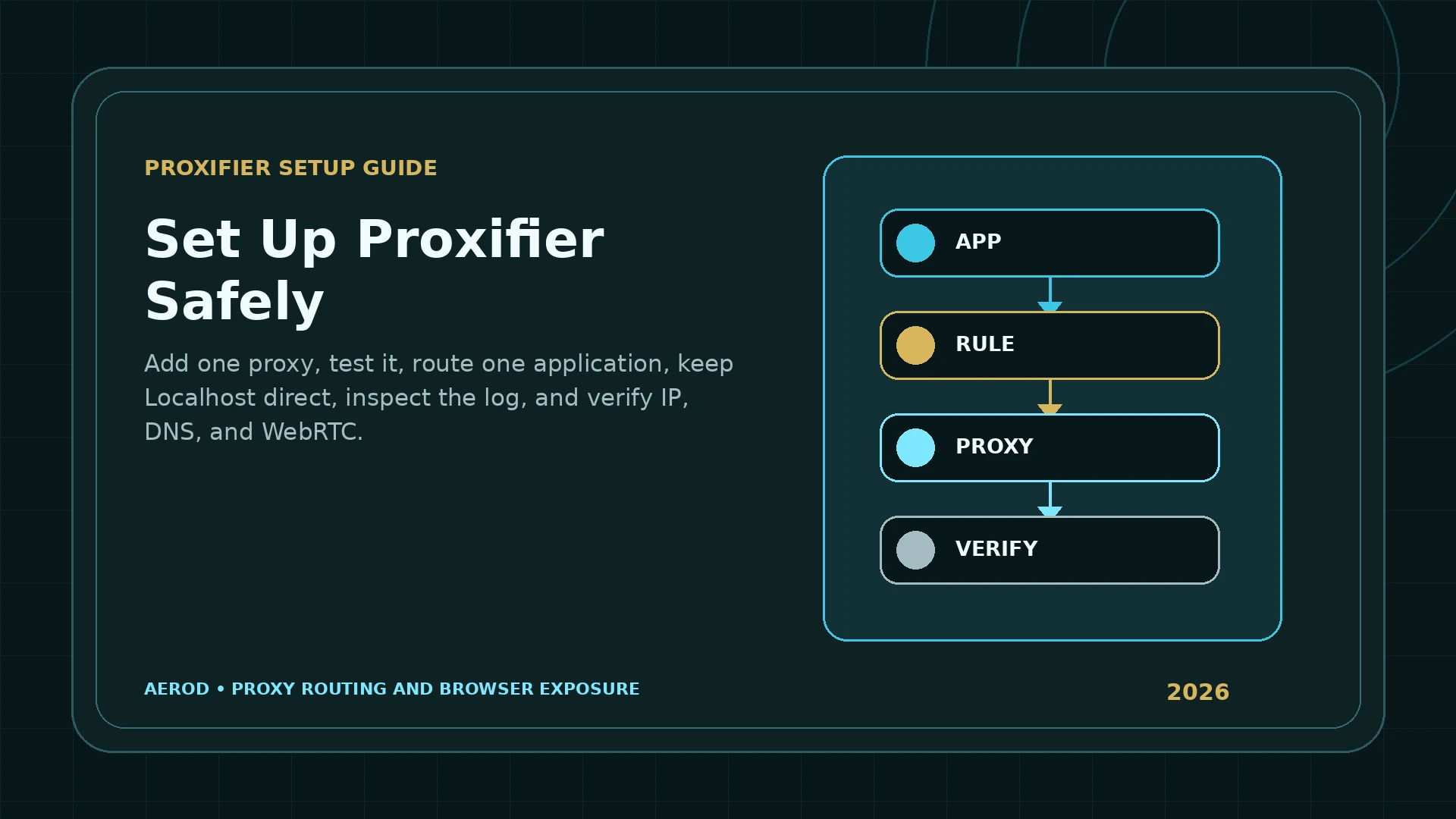
Recommended beginner configuration
Localhost → Direct, one application → proxy, Default → Direct.
This rule order limits mistakes to one process. It also gives you a direct comparison path while you verify the proxy with IP Lookup, WebRTC Leak Test, and the browser-exposure workflow.
What Proxifier does
Proxifier allows applications that lack their own proxy settings to make TCP connections through SOCKS or HTTPS proxy servers. Its Windows v4 documentation also supports flexible rules, proxy chains, name resolution through a proxy, live connection inspection, and detailed logs.
Proxifier is not a proxy service and is not a complete anonymity system. It changes how matching connections leave the computer. The proxy endpoint, browser state, DNS behavior, WebRTC, IPv4, IPv6, application architecture, and account state remain separate parts of the final result.
What you need before configuration
- A current Proxifier installation for Windows.
- A proxy hostname or IPv4/IPv6 address.
- The proxy port.
- The correct protocol: SOCKS4(A), SOCKS5, HTTPS, or supported HTTP.
- Authentication details or an authorised source IP when required.
- The executable path of the first application to route.
- A permitted target for testing.
- A baseline IP and network result from the direct connection.
Use the Proxy Type Selector before buying a route when you have not decided between datacenter, ISP/static residential, rotating residential, mobile, or VPN service.
Step 1: remove duplicate in-app proxy settings
Proxifier's official proxy-settings documentation warns that an application with its own proxy configuration can be proxied twice. Configure the application for a direct connection before applying the Proxifier rule unless the double-proxy path is intentional and documented.
Check the application for:
- Manual HTTP, HTTPS, or SOCKS settings.
- A browser extension that proxies traffic.
- A launcher-level proxy setting.
- Environment variables such as
HTTP_PROXY,HTTPS_PROXY, orALL_PROXY. - A system proxy inherited by the application.
Step 2: add the proxy server
Open:
Profile → Proxy Servers → Add
Enter the address, port, protocol, and authentication details exactly as supplied. Do not infer the protocol from the port alone. A server on port 8080 can be a plain HTTP proxy, an HTTPS/CONNECT proxy, or another service depending on its configuration.
| Protocol in Proxifier | Typical capability | Authentication options documented by Proxifier |
|---|---|---|
| SOCKS4(A) | Legacy TCP proxying; SOCKS4A can support remote name resolution | User ID, not modern username/password authentication |
| SOCKS5 | General TCP proxying with authentication | Username and password |
| HTTPS | HTTP CONNECT tunneling on arbitrary permitted ports | Basic credentials, NTLM, Kerberos, current-user login, and related options |
| HTTP | HTTP connections only unless the server also supports CONNECT and is added as HTTPS | Username and password |
Read SOCKS5 vs HTTPS in Proxifier before choosing between a general SOCKS endpoint and an HTTP CONNECT proxy.
Step 3: run Proxy Checker
Use the Check button in Proxy Server Settings or open View → Proxy Checker. The checker can test SOCKS4(A), SOCKS5, HTTPS, and HTTP servers, measure response time, and produce troubleshooting recommendations.
Keep Work through Proxifier disabled for the first direct proxy test. The official documentation identifies that as the default and recommends changing it only for a specific scenario in which the target proxy cannot be reached directly.
Do not create application rules until the endpoint passes the necessary checks. A failure at this stage usually points to:
- Wrong hostname or port.
- Wrong protocol selection.
- Failed authentication.
- An IP allowlist that does not contain the current source.
- A network or firewall that cannot reach the proxy.
- A plain HTTP proxy incorrectly configured as HTTPS.
- A proxy that cannot reach the checker target.
Step 4: create one application rule
Open:
Profile → Proxification Rules
Proxifier evaluates rules from top to bottom. A connection must satisfy every populated criterion—application, target, and port—to match the rule. Empty criteria act as Any.
Use this beginner order:
1. Localhost                 → Direct
2. Browser test route        → MY_PROXY
3. Default                   → Direct
A first application rule can use:
| Field | Example | Reason |
|---|---|---|
| Name | Browser test route | Make the purpose visible in the log |
| Applications | Full path to the selected executable | Avoid matching an unrelated process with the same name |
| Target hosts | Any | Verify the app broadly before narrowing destinations |
| Target ports | Any | Avoid hiding a protocol mismatch during the first test |
| Action | MY_PROXY | Use the endpoint already verified by Proxy Checker |
Why Localhost should usually remain direct
The predefined Localhost rule keeps loopback connections direct. Proxifier's documentation notes that applications such as Firefox can depend on local connections. Routing 127.0.0.1 through a remote proxy can break local helpers, security software, development servers, authentication callbacks, and browser components.
Change Localhost only when the workflow explicitly requires it and you understand the consequences.
Step 5: identify the process that actually connects
A shortcut name is not always the process that opens the network connection. Launchers can start child applications, browsers can use helper processes, and auto-updaters can connect separately.
Use the Connections and Output panes to record:
- Application name and process ID.
- Target hostname or address and port.
- Matched rule.
- Selected proxy or chain.
- Connection status.
- Error code or message.
Set the screen log to Verbose while troubleshooting. The official UI documentation states that Verbose includes rule processing and DNS requests, while Debug adds more detail and can produce extensive output.
Step 6: choose a DNS strategy
Proxifier can resolve names locally or through a proxy. Automatic detection is enabled by default. It monitors local DNS availability and can enable proxy-side resolution when the system resolver is unavailable.
Proxy-side name resolution has limitations. The proxy cannot simply return the real destination address to the local application, so Proxifier can assign placeholder addresses such as 127.8.*.*. IP-address-based rules then behave differently because the local computer sees the placeholder rather than the destination IP.
For a first setup:
- Leave automatic DNS detection enabled.
- Use hostname rules rather than IP rules when names resolve through the proxy.
- Keep simple local hostnames direct unless there is a documented reason to proxy them.
- Use Verbose logging to observe DNS requests.
- Do not equate a changed web IP with a complete DNS check.
Use Proxifier DNS Leak Fix for a controlled name-resolution workflow.
Step 7: verify from the routed application
- Record the direct IPv4, IPv6, ASN, organization, and approximate location.
- Close and restart the routed application after enabling the rule.
- Open IP Lookup from that application.
- Confirm the visible address and network match the expected proxy route.
- Check IPv4 and IPv6 separately.
- Run WebRTC Leak Test if the routed application is a browser.
- Run the Browser Permissions & Privacy Settings Check and Proxy/VPN Detection when browser consistency matters.
- Inspect the Proxifier log to confirm the same request matched the intended rule.
Step 8: narrow the rule only after the route works
Once the application route is verified, you can limit the rule by hostname or port. Proxifier supports wildcards, IPv4 and IPv6 ranges, and IPv4 CIDR notation. Remember that all populated criteria must match.
Examples:
Application: "C:\Tools\ClientApp.exe"
Target hosts: service.example.com;*.service.example.com
Target ports: 443
Action: MY_PROXY
Keep the app-specific rule above broader rules. Leave Default direct when unmatched traffic should use the normal route.
Common setup failures
The proxy passes Proxy Checker but the application remains direct
Confirm the actual executable and rule order. Look for a launcher, helper, updater, child process, manual Proxifier launch, or rule above the intended entry.
The browser works through the proxy but another application fails
The browser may be using a plain HTTP proxy that supports web traffic but not arbitrary TCP tunneling. Recheck whether the server supports SOCKS5 or HTTPS CONNECT.
All unmatched traffic uses the proxy
The Default rule probably points to the proxy. Change it to Direct and retain the narrow application rule above it.
Name resolution fails or rules match unexpected addresses
Review automatic versus proxy-side resolution. Placeholder 127.8.*.* addresses and IP-based rules are a common source of confusion.
Proxifier reports an infinite connection or DNS loop
A local proxy, tunnel, or security product may have its outbound connection captured and redirected back into itself. Keep loop detection enabled, add a Direct rule for the local proxy process, and review Proxifier Not Working.
Release checklist
Verify before expanding the rule
- Built-in app proxy settings disabled.
- Correct protocol, address, port, and authentication.
- Proxy Checker passes the intended tests.
- Localhost remains Direct.
- Default remains Direct.
- One exact application rule sits above Default.
- Connections and Output show the intended process and rule.
- IPv4 and IPv6 were checked from the routed app.
- DNS and WebRTC were reviewed separately.
- Loop detection remains enabled.
FAQ
Does Proxifier provide proxy servers?
No. Proxifier is a proxy client and routing layer. You must supply a working SOCKS4, SOCKS5, HTTPS, or supported HTTP proxy from a provider, employer, lab, or internal network.
Should a beginner route the Default rule through the proxy?
Usually no. Keep Localhost direct and Default direct, then add one narrow application rule above Default. Expand only after the first application is verified.
Should I choose SOCKS5 or HTTPS in Proxifier?
SOCKS5 is a strong general starting point for authenticated application routing. HTTPS is appropriate when the server supports CONNECT tunneling on the ports your application needs. Test the exact endpoint with Proxy Checker.
How do I know which executable to put in a rule?
Use Proxifier's Connections and Output panes to identify the process that actually opens the connection. Launchers, updaters, helpers, and child processes can differ from the shortcut you clicked.
How do I know Proxifier is working?
Confirm that the connection matches the intended rule and proxy in Proxifier's log, then check the visible IPv4, IPv6, ASN, organization, and approximate location from the routed application.
Does a changed IP prove DNS and WebRTC also use the proxy?
No. A changed public IP proves only that the tested request used a different exit. DNS resolution, WebRTC candidates, browser storage, fingerprinting, and other applications require separate checks.