A WebRTC leak happens when your browser reveals your real public IP address to a website through WebRTC, even though your normal browsing goes through a VPN or proxy. To check, compare a WebRTC leak test with your known IP addresses; to stop it, limit WebRTC to your VPN or proxy route with the browser setting below, or turn WebRTC off if you never use browser calls.
Leaks are most common with browser proxies and split-tunnel VPNs. This guide shows how to check for one, how to read the result, the exact setting to change in Chrome, Edge, Firefox, Brave and Safari, and what each change does to video calls.
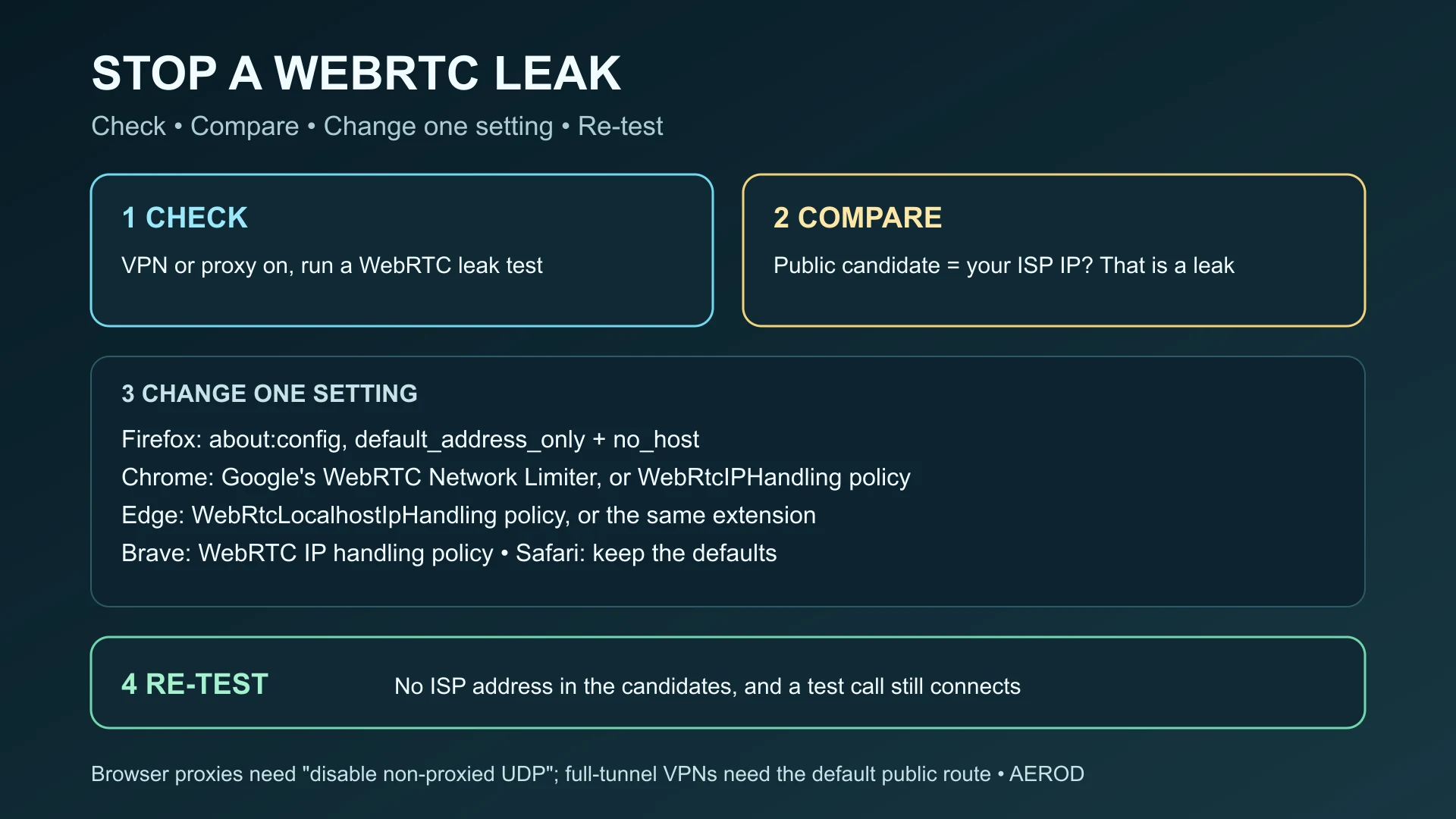
Why WebRTC can bypass your VPN or proxy
WebRTC lets browsers make calls and share screens directly. To find a connection path it gathers “ICE candidates”: the addresses of your network interfaces, plus your public address as seen by a STUN server. A web page can read those candidates, so it can learn more than an ordinary web request reveals. RFC 8828 describes the two main risks:
- Split-tunnel VPNs: the browser can discover both the VPN address and the ISP address underneath it.
- Application proxies: STUN checks can go around a browser’s HTTP or SOCKS proxy and reveal your public address if direct internet access is allowed.
Modern browsers hide local network addresses behind random .local (mDNS) names by default, but that only hides your private LAN address. It does not hide your public IP.
Step 1: check for a leak
- With your VPN or proxy off, note your public IPv4 and IPv6 addresses in IP Lookup. This is your real ISP route.
- Connect the VPN or proxy and confirm IP Lookup now shows its address.
- Run the WebRTC Leak Test in the same browser profile.
- Compare the candidates it lists with the addresses from steps 1 and 2.
Step 2: read the result
| What the test shows | What it means | Action |
|---|---|---|
| A public address that matches your VPN or proxy | WebRTC uses the protected route. No public IP leak. | Nothing to fix. |
| A public address that matches your normal ISP address | A WebRTC leak: a website can see your real public IP. | Apply the browser fix below, then re-test. |
A private address such as 192.168.x.x or 10.x.x.x | Your local network address is exposed. It is not your public IP, but it adds tracking detail. | Optional: hide host addresses with the settings below. |
A .local name instead of an address | The browser is hiding your local address with mDNS, as intended. | Nothing to fix. |
| No candidates at all | WebRTC is disabled or blocked, or the test could not run. | Expected if you turned WebRTC off; otherwise re-run the test. |
For how WebRTC fits into a wider browser check, including DNS and fingerprinting, see the browser leak test guide.
Which setting to choose
| Your setup | Best setting | Effect on calls |
|---|---|---|
| Full-tunnel VPN | Use only the default public route (Chrome and Edge: default_public_interface_only; Firefox: default_address_only and no_host) | Calls keep working |
| Split-tunnel VPN | The default-route setting above; on Edge for Windows, also enable WebRtcRespectOsRoutingTableEnabled | Calls keep working |
| Browser proxy (HTTP or SOCKS) | Force WebRTC through the proxy: disable_non_proxied_udp | Calls may fall back to TCP and be slower |
| You never use browser calls | Turn WebRTC off where the browser allows it | Browser calls and screen sharing stop working |
Firefox
Type about:config in the address bar, accept the warning, search for each preference and change it. The Mozilla WebRTC privacy page documents them.
media.peerconnection.ice.default_address_only→true: only the default-route address is used, so with a VPN the VPN address is the one exposed.media.peerconnection.ice.no_host→true: removes local network addresses from the candidates. Together with the setting above, this keeps calls working while showing only the default route.media.peerconnection.enabled→false: turns WebRTC off entirely. Browser calls will no longer work.
Avoid media.peerconnection.ice.relay_only unless you know you need it: it forces traffic through relay servers and breaks most calls that have no relay available.
Google Chrome
Chrome has no built-in WebRTC switch in its settings. You have two options:
- Google’s extension: install WebRTC Network Limiter, published by Google. By default it stops WebRTC from using private addresses and public addresses that your web traffic does not use, such as your ISP address while a VPN is on. If you use a browser proxy, also enable its Disable non-proxied UDP option.
- Managed browsers: set the
WebRtcIPHandlingpolicy.default_public_interface_onlyuses only public interfaces;disable_non_proxied_udpsends WebRTC through the proxy or falls back to TCP.
Limiting WebRTC paths can make calls start more slowly or lower their quality.
Microsoft Edge
Edge has no WebRTC switch in its settings either. You can install the same Google extension: at edge://extensions, turn on Allow extensions from other stores, then add it from the Chrome Web Store. On managed or Group Policy setups, Microsoft documents three policies:
WebRtcLocalhostIpHandling(Edge 77 and later):AllowPublicInterfaceOnlyorDisableNonProxiedUdpstops the local address being exposed. A browser restart is needed.WebRtcIPHandlingUrl(Edge 135 and later): sets the handling per site, for example{"handling":"disable_non_proxied_udp","url":"*"}for every site.WebRtcRespectOsRoutingTableEnabled(Windows, Edge 94 and later): makes WebRTC follow the Windows routing table, which helps with split-tunnel VPNs.
Brave
Open brave://settings/privacy and find WebRTC IP handling policy. According to Brave’s documentation, the options are Default, Default Public And Private Interfaces, Default Public Interface Only, and Disable Non-Proxied UDP. Choose Default Public Interface Only with a VPN, or Disable Non-Proxied UDP with a proxy. Check the setting after browser updates; it has been reported to reset.
Safari
Safari has no WebRTC switch in its settings, but it limits candidates by default. According to WebKit, a page that has not been granted camera or microphone access only sees your public (server-reflexive) and relay candidates; local addresses appear only after you allow camera or microphone access. Do not turn on Develop → WebRTC → Disable ICE Candidate Restrictions: it is a developer testing aid that stops Safari filtering those addresses.
Because Safari still shows the public candidate, the reliable fix on a Mac or iPhone is a full-tunnel VPN rather than a browser proxy.
Step 3: re-test and confirm
- Restart the browser if you changed a policy.
- Connect the VPN or proxy and run the WebRTC Leak Test again.
- Confirm no candidate shows your normal ISP address.
- Make a short test call in the web app you use, to check it still connects.
- Check DNS too: what a DNS leak test shows, and how to check that a VPN changed your IP.
If you are still choosing a VPN, the NordVPN and Proton VPN reviews and the VPN services overview cover their apps and leak protection. Whatever you choose, run the test above after connecting.
FAQ
How do I check for a WebRTC leak?
Note your normal public IP with an IP lookup, connect your VPN or proxy, then run a WebRTC leak test. If a public candidate shows your normal ISP address instead of the VPN or proxy address, WebRTC is leaking it.
Does a VPN stop WebRTC leaks?
A full-tunnel VPN usually does, because the browser has no other route to the internet. Leaks are most likely with browser proxies, which do not carry WebRTC’s UDP traffic, and with split-tunnel VPNs, where the browser can still see your ISP route.
How do I disable WebRTC in Chrome?
Chrome has no built-in switch. Install Google’s WebRTC Network Limiter extension and choose the option that uses only your default or proxied route, or, on a managed browser, set the WebRtcIPHandling policy to default_public_interface_only or disable_non_proxied_udp.
How do I disable WebRTC in Firefox?
Open about:config and set media.peerconnection.enabled to false. To keep calls working while hiding addresses, leave it on and set media.peerconnection.ice.default_address_only and media.peerconnection.ice.no_host to true instead.
Will stopping WebRTC leaks break video calls?
Turning WebRTC off entirely breaks browser calls and screen sharing. Limiting it to the default route or forcing it through the proxy keeps calls working in most cases, sometimes with slower connections or lower quality.