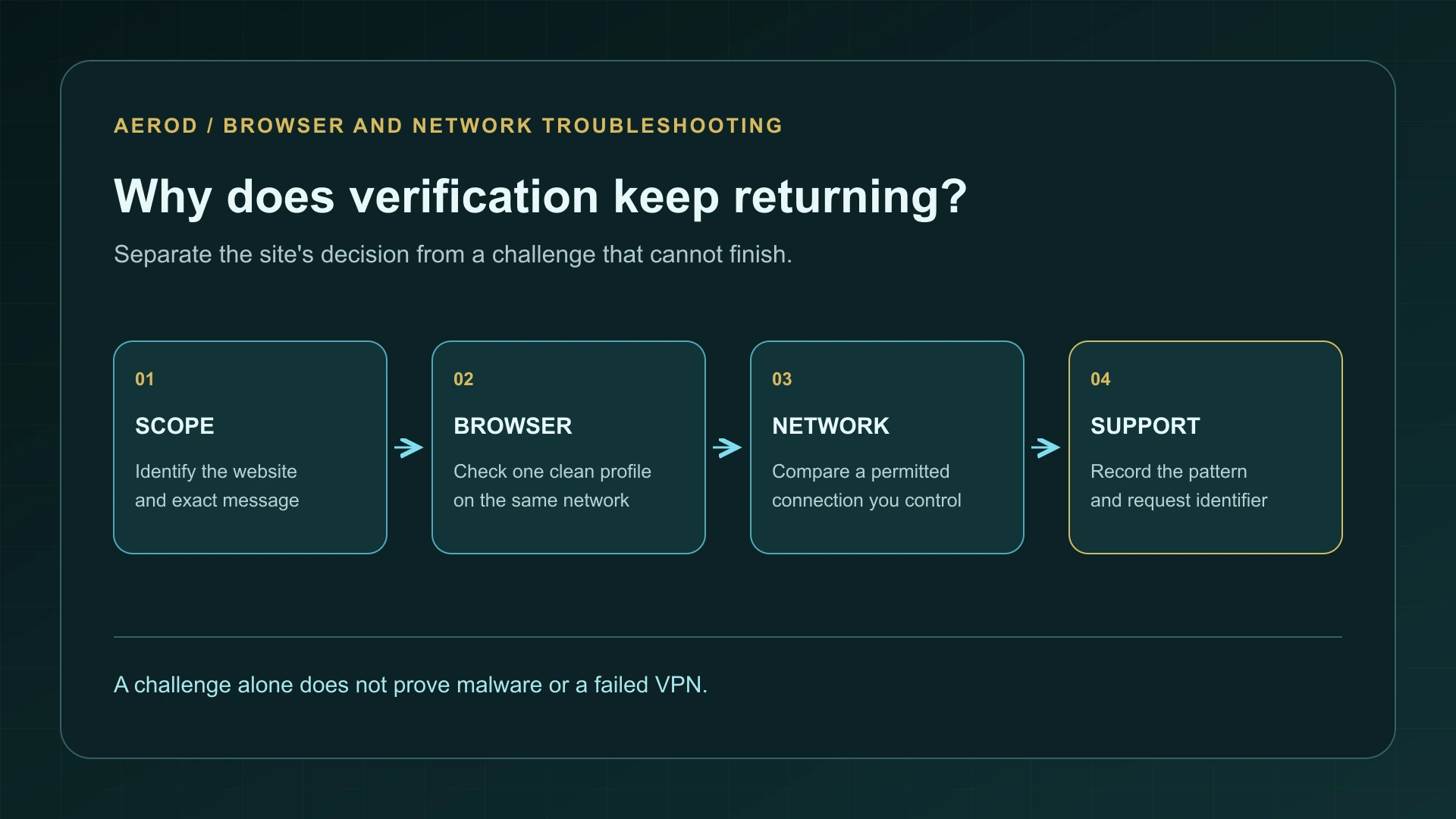
Repeated CAPTCHAs can reflect the network you share, browser behavior, or a verification process that is not completing. They do not automatically mean your computer is infected or that a VPN has failed. Start by separating a challenge that repeatedly appears from one that never finishes.
Google's “unusual traffic” message and a Cloudflare verification screen are not the same system. Record the website and exact wording before troubleshooting. One site's decision cannot diagnose your entire connection.
Identify the type of problem
On narrow screens, scroll the table horizontally.
| What you see | Useful first distinction | Next observation |
|---|---|---|
| A challenge appears, completes, then returns later | Repeated requests for verification | Does it follow one browser, account, or network? |
| The verification widget is blank or never loads | The challenge may not be running | Check JavaScript, blocked resources, and browser compatibility |
| The screen keeps reloading after a successful interaction | The site's verification flow may not be completing | Compare one clean browser profile and record the error |
| Only Google Search reports unusual traffic | A Google Search-specific restriction | Use Google's documented network and browser checks |
| Several devices on the same network are affected | A shared network condition is possible | Ask the network or VPN operator to investigate |
Why shared networks can trigger Google's message
Google's March 2024 unusual-traffic guidance says the message can appear when a network, including a VPN network, seems to be sending automated searches. Other people using the same network can be involved; the message is not a finding that you personally ran a bot.
A household, office, school, or VPN exit can put several users behind a shared outgoing address. IP Lookup can help you record that address and its network context. It cannot tell you Google's internal assessment, identify another user, or prove why a particular challenge appeared.
Do not buy a different proxy or VPN solely because one page challenged you. First collect a repeatable comparison. If the issue follows an exit network, its operator is better placed to investigate abuse and access problems than an outside IP checker.
Run a small browser-versus-network comparison
- Keep the same device, browser, and connection. Note the affected website and whether the challenge loads and completes.
- Close duplicate tabs and pause your own automated searches, scraping jobs, or rapid repeated requests.
- Try the same ordinary request in another supported browser or a clean profile, keeping the network unchanged.
- If appropriate, compare the original browser on another network you control. Record whether the VPN remains connected, because it may keep the same exit despite a Wi-Fi change.
- Return to the original configuration and see whether the pattern repeats.
If one browser fails and another works on the same connection, investigate their differences first. If several browsers and devices fail only through one network, give that pattern to the operator. Neither comparison proves the cause: time, account state, and site behavior can change between requests.
Switching off a VPN exposes the normal connection to the sites you visit. Skip that comparison when it conflicts with your privacy needs or workplace rules. A controlled test should not require abandoning protection you depend on.
If the challenge does not load, check the browser
Google specifically recommends checking browser support and JavaScript when reCAPTCHA is absent. On a trusted website, review whether an extension or site-specific setting blocks the resources needed for the verification step. Use the browser's normal controls; do not install an extension promoted by an unexpected challenge page.
A clean profile can help isolate optional extensions and saved settings without dismantling your everyday profile. Keep the browser updated, allow only the access necessary for the trusted site, and restore any temporary diagnostic exception afterward. If clearing site data becomes necessary, expect it to sign you out or remove local preferences.
A private window is a comparison, not a guaranteed fix. Its storage and extension behavior can differ from the normal profile, so a different outcome needs interpretation. Likewise, changing fingerprint-related preferences can change several signals at once. The fingerprinting explainer provides context without treating one test score as a diagnosis of CAPTCHA behavior.
Not every verification screen is a traditional CAPTCHA
Cloudflare introduced Turnstile in September 2022 and announced general availability in September 2023. Its verification approach can run without asking the visitor to solve a picture puzzle. A “checking your browser” screen therefore does not necessarily mean an image-selection CAPTCHA is missing.
Identify the actual service and collect any visible error or request identifier. A site owner can investigate its own verification configuration and logs; a visitor generally cannot inspect the rules behind the decision. Repeatedly solving challenges or rapidly changing browser settings is not a substitute for that evidence.
Keep the connection steady during the comparison
If you intentionally use a rotating proxy or switch VPN servers, hold the route steady while diagnosing the problem. Otherwise, a change in the browser and a change in the outgoing connection can occur together, leaving you unable to tell which mattered.
The Proxy Rotation & Sticky Session Monitor can help observe route stability within its test scope. It does not reproduce another site's verification rules or guarantee that the site will accept the session. Use it to describe the connection, not to claim a challenge bypass.
When to investigate unwanted automated traffic
If messages persist without an obvious browser explanation, review unfamiliar extensions and software using your device's trusted security tools. Google lists malware and automated traffic among the possible causes, alongside activity from other network users. Treat that as a reason to investigate, not as a diagnosis from the challenge alone.
Never paste commands into a terminal or download a “verification tool” merely because a page says it is needed to prove you are human. If the page's instructions seem unrelated to ordinary browser verification, leave it and reach the organization through a known address.
Give support a useful report
Include the affected URL, exact message, time and time zone, browser version, whether verification loads, and the comparison results. Share a public IP or request identifier privately with the appropriate operator when needed. Remove account details, tokens, cookies, and unrelated browser information from screenshots.
The goal is normal, reliable access to a service you are permitted to use. A changed public IP is not proof that the underlying issue is fixed, and a successful retry does not establish a permanent exemption from future verification.
FAQ
Do repeated CAPTCHAs mean I have malware?
No. Malware is one possible cause of unwanted automated traffic, but shared networks, browser settings, and incomplete verification can also be relevant.
Does getting a CAPTCHA mean my VPN is not working?
No. The site may be challenging traffic from the VPN's shared exit. Verify the route separately instead of using the challenge as a VPN test.
Will private browsing always stop CAPTCHAs?
No. It changes some browser state but does not guarantee a different network or a different decision by the website.