Use Default Block when unmatched connections handled by Proxifier should be rejected instead of sent directly. Keep deliberate exceptions visible, allow only the intended application and destination through a proxy, and prepare a recovery profile first. This is a different policy from the selective-routing examples, which intentionally leave unmatched traffic direct.
This is a documentation-based guide for Proxifier v4 for Windows. The example and diagram are illustrative configuration reasoning, not a captured session or an Aerod hands-on test. The documented TCP scope does not establish protection for UDP or QUIC, every service, or traffic while Proxifier is stopped. Do not treat this as a whole-system kill switch.
Save a recovery profile before editing
Profiles are saved automatically after changes. Do not rely on closing a dialog to preserve the old configuration.
- Record the active profile name shown in the main window.
- Use File → Save Profile As to save the known-working settings under a distinct recovery name. Avoid overwriting an existing recovery copy.
- Immediately use Save Profile As again with a different working name for this exercise. Confirm that this experimental copy, not the recovery copy, is active before editing.
- Record current Log and View preferences separately; they are not part of a profile.
Profiles may contain proxy passwords. Keep recovery copies private and retain the appropriate password encryption; do not upload them with support screenshots. Avoid changing routing during a remote-support session or another task whose connection you cannot safely interrupt.
Choose the intended policy
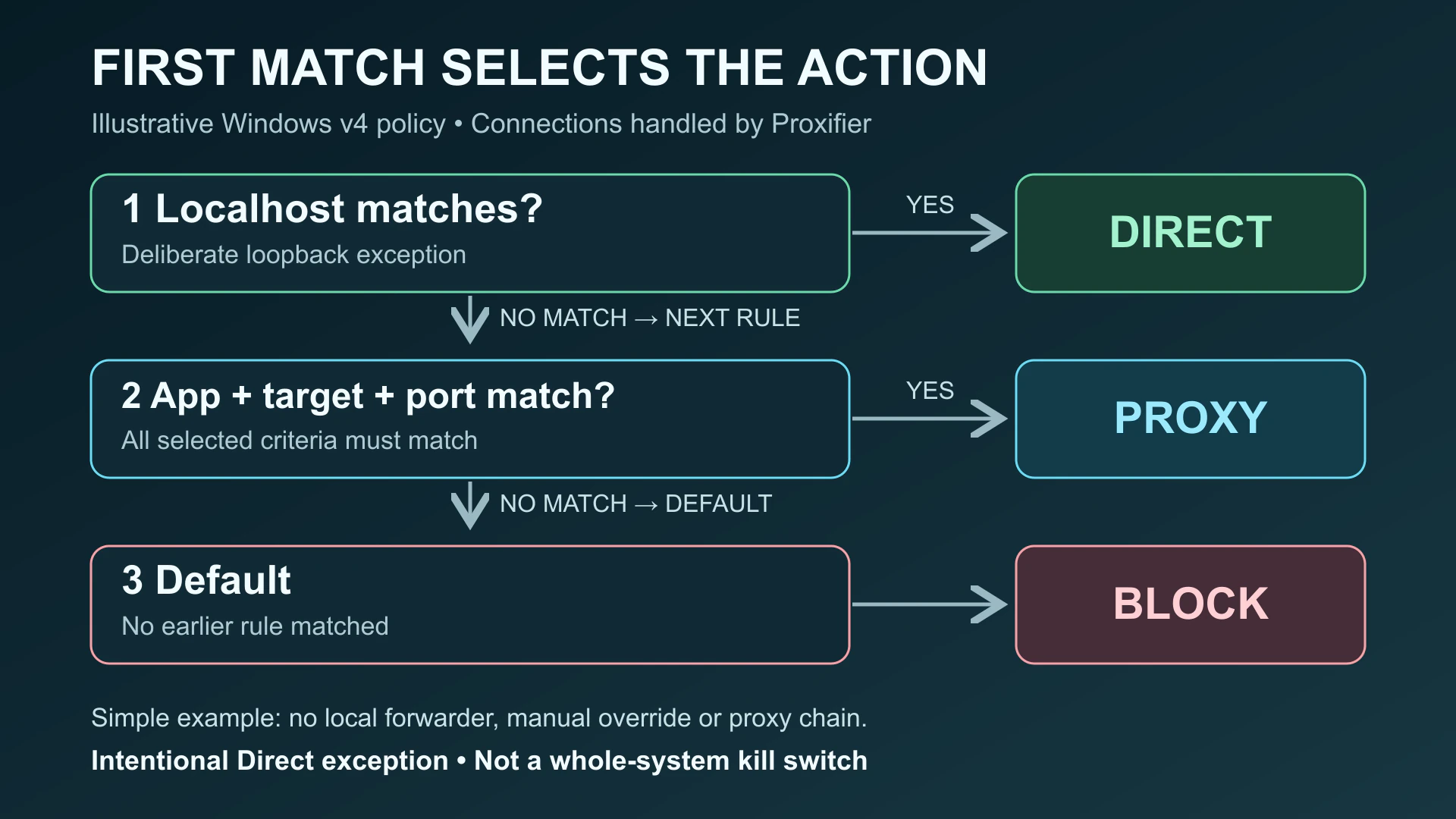
The rules reference defines Direct, Proxy, Chain and Block actions. Rules are examined in order; the Default action applies when no earlier rule matches. Every populated application, host and port criterion must match.
In the working copy, open Profile → Proxification Rules. Preserve the enabled Localhost Direct exception. Add the intended proxy rule above Default, then change Default's action to Block. Audit any other enabled rule: an earlier Direct action is still an allowance, not something Default Block cancels.
Use an already configured proxy. The setup guide covers the initial configuration; the official Quick Start warns against unintentionally retaining an application's own proxy configuration and processing its connections twice.
Illustrative example: one executable and destination
These are example values, not a working profile to import. Assume a normally launched application, no local forwarder, no additional rules, and a single configured proxy rather than a chain. Replace the example path and destination with your own authorized task.
On narrow screens, scroll the table horizontally. Keyboard users can focus the table region and use the arrow keys.
| Order | Match | Action |
|---|---|---|
| 1 | Existing Localhost rule | Direct, intentional loopback exception |
| 2 | C:\Tools\ExampleClient.exe, service.example.com, TCP port 443 | Your configured proxy |
| 3 | Default: no earlier match | Block |
For this hypothetical policy, the selected executable contacting the selected service fits row 2. The same executable contacting another external destination does not. An unrelated executable also does not, even if it uses the selected destination. These are rule-selection examples, not observed network outcomes.
A real application may need authentication, update or helper connections beyond that one destination. Investigate each requirement rather than replacing the narrow rule with an unexplained wildcard. Use the process-path example when a launcher or interpreter differs from the executable you selected.
Observe the decision, not just whether a page opens
A successful Proxy Checker result covers its enabled tests and configured target. With its default Work through Proxifier option disabled, it bypasses Proxifier; it is not a test of your Default Block rule.
- Restart the selected application normally and make a fresh, permitted request.
- Choose Log → Screen Log → Verbose. Inspect Application/PID, Target, Rule: Proxy and the Output messages described in the interface documentation.
- Record whether the intended proxy rule was selected and whether that connection succeeded. A failure alone does not show which rule caused it.
- Separately try a permitted request that intentionally does not satisfy the example policy. Look for evidence of the Block decision; an offline target or DNS error is not equivalent evidence.
- For a permitted browser request, use IP Lookup only in that routed browser. Another browser's result does not establish a script's route.
Direct rows depend on Handle Direct Connections. An absent row is inconclusive; do not enable direct handling indiscriminately to make one appear. Follow the conditional visibility and forwarder guidance.
Coverage and exceptions to inspect
On narrow screens, scroll the table horizontally. Keyboard users can focus the table region and use the arrow keys.
| Condition | Why the simple diagram is insufficient | What to do |
|---|---|---|
| Manual proxification | A context-menu launch can override ordinary rules for that instance/PID. | Restart normally for a rule-policy check; inspect launcher and child processes separately. |
| Services or other users | The Standard Edition's additional coverage is disabled by default. | Keep that scope unchanged here. Do not infer that your profile covers every account or service. |
| Assigned interface unavailable | The configured fallback can use the system-default interface or ignore the rule. Using that interface does not itself select the Direct action. | Inspect the selected behavior. If the rule is ignored, subsequent rules decide the connection; interface selection alone is not a fail-closed guarantee. |
| Empty proxy chain | A chain containing no proxies makes a direct connection. | Use the intended single proxy for this example; do not interpret an empty chain label as protection. |
| Proxy connection fails | A connection on a matched proxy rule can fail. That failure is not a non-match and does not fall through to Default Block. | Keep rule identity and connection error as separate observations. |
The exceptions above come from the official manual-instance, services/other-users, interface and chain documentation. They are reasons to inspect your configuration, not to broaden it automatically.
Keep DNS and local-forwarder exceptions explicit
Proxy-side name resolution can substitute local placeholder addresses, so IP-based criteria cannot use the real destination address in that mode. Use the DNS guide to distinguish hostname matching, local exceptions and actual resolver evidence. Default Block alone does not prove the DNS path.
A local proxy, tunnel or antivirus forwarder changes the example. The official loop guidance calls for bypassing that forwarder's own connections and disabling Handle Direct Connections. DNS loops may also require disabling proxy-side resolution. A necessary Direct rule for the forwarding process is another explicit exception: document its scope and position before Default, and do not claim that the forwarder is blocked.
Keep both connection-loop and name-resolution-loop detection enabled. If you cannot identify the forwarding process or safely account for its DNS behavior, restore the previous profile and investigate instead of adding a broad Direct rule.
Restore the previous profile
Use File → Load Profile to return to the saved recovery profile and confirm its name in the window. Restore temporary logging and view preferences separately. Retest a fresh request from the affected application. Do not use “everything opened again” as evidence that the experimental restrictions remain active.
FAQ
Is Default Block a whole-system kill switch?
No. This guide concerns connections handled by Proxifier under the active configuration. It does not establish coverage of UDP or QUIC, other users and services, manually overridden instances, or traffic while Proxifier is stopped.
Why can a connection still be Direct with Default Block?
An earlier Direct exception can allow it. Also inspect manual instance overrides and empty proxy chains rather than assuming that the Default rule decided every connection.
Does a failed proxy mean the Default Block rule matched?
No. A failed connection on a matching proxy rule and a connection rejected by Default Block are different observations. Inspect the process, target, rule and error before drawing a conclusion.
Should I enable services and other users for this example?
No. Keep that scope unchanged. The official Windows v4 documentation says those Standard Edition features are disabled by default and intended for advanced users; enabling them would broaden this exercise.
Does loading my recovery profile restore logging preferences?
No. Profile settings include proxy servers, rules and name resolution, but Log and View settings are separate. Load the saved recovery profile and restore temporary diagnostic preferences separately.