You usually need one of three IP addresses: your public IP (what websites see), your local IP (your device on your home network) or your router’s IP (the gateway). To find the public one, run an IP lookup in your browser. To find the local one, use the network settings on your device or the ipconfig command on Windows. Both are covered below for Windows, Mac, iPhone, Android and Linux.
If the local address and the one a website shows do not match, that is normal. This guide shows how to find each address, which is which, and how to read a mismatch.
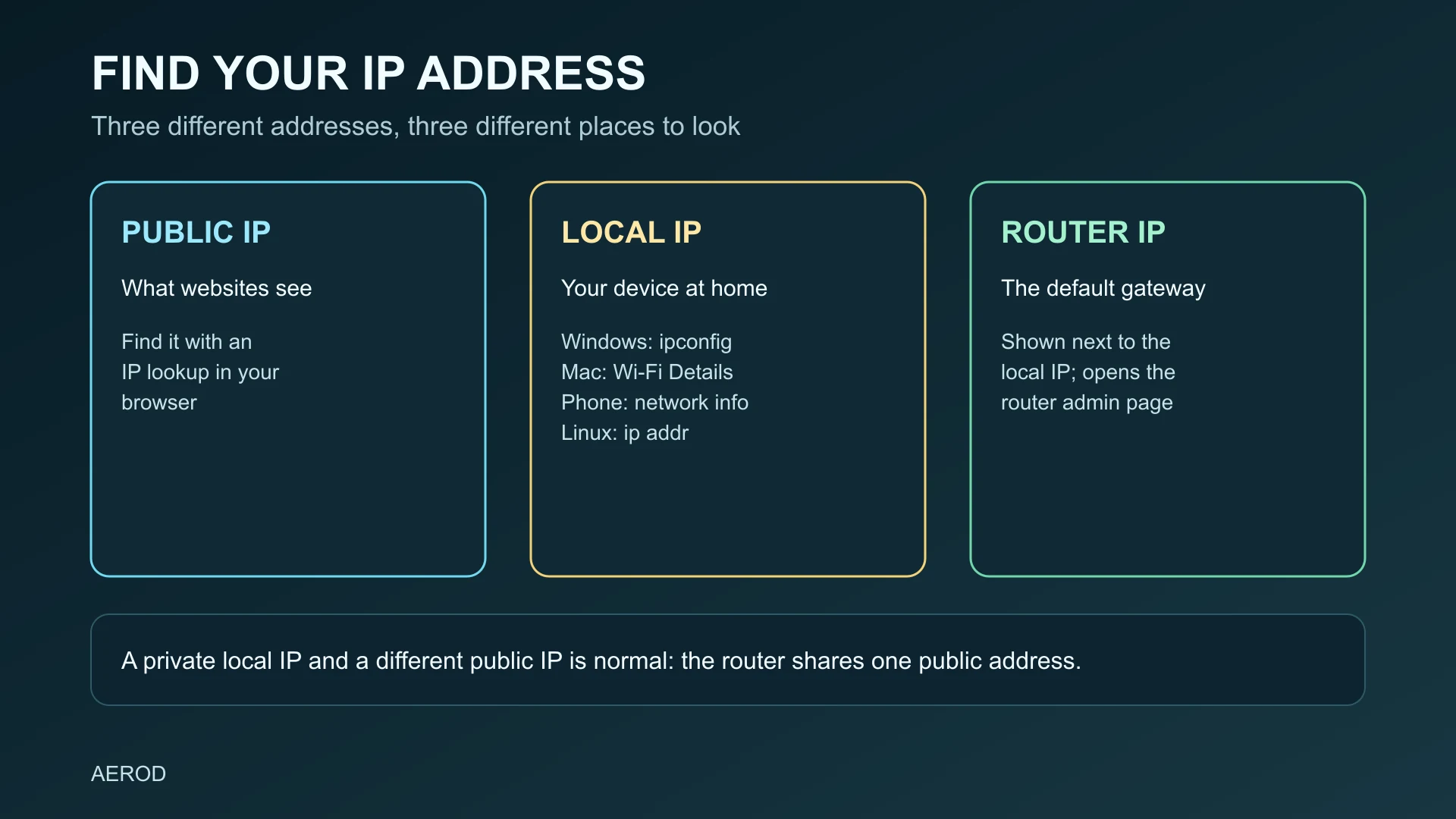
Which IP address do you need?
| Address | What it is | Where to find it |
|---|---|---|
| Public IP | The address websites see for your connection. Shared by every device behind your router. | An IP lookup in your browser, or the WAN/Internet status page of your router. |
| Local (private) IP | Your device’s address on your home or office network, usually 192.168.x.x or 10.x.x.x. | Your device’s network settings, or ipconfig / ip addr. |
| Router IP (default gateway) | The router’s address on your local network. Opens the router’s admin page. | The Default Gateway or Router field next to your local IP. |
Find your public IP address
- Open IP Lookup in the browser on the device you are checking.
- Note the IPv4 address and, if shown, the IPv6 address. Many connections have both.
- Check the network name and location shown. They describe your ISP or mobile carrier’s route, not your street, which is why the location is often a nearby city; see why an IP location is wrong.
A VPN or proxy replaces the public address a website sees. If you want to see your real one, disconnect it first. To check that a VPN changed it, follow how to check that a VPN changed your IP.
Windows 10 and 11
- Open Settings > Network & internet.
- Choose Wi-Fi (or Ethernet for a cable) and select the connection you are using.
- Read the IPv4 address in the connection’s properties.
Microsoft’s find your IP address in Windows page describes these steps. For a faster route, open Command Prompt and run:
ipconfigWith no options, ipconfig lists the IPv4 and IPv6 addresses, subnet mask and default gateway for each adapter. The default gateway is normally your router’s address.
Mac
- Open the Apple menu > System Settings and click Wi-Fi in the sidebar.
- Click Details next to the connected network.
- Read the IP address and Router listed for the connection. The Wi-Fi settings on Mac page lists them. Use TCP/IP in the same panel for more detail; see TCP/IP settings on Mac.
On a wired Mac, use Network in the sidebar, select the Ethernet service and click Details. Menu labels differ slightly between macOS versions.
iPhone and iPad
- Open Settings > Wi-Fi.
- Tap the Info button next to the network you are connected to, as described in Manage Wi-Fi settings on iPhone.
- Look for the IP address and router in the network’s details.
If the address looks unfamiliar, the iPhone may be using a private Wi-Fi address for that network; Apple explains this in use private Wi-Fi addresses. That setting hides your device’s hardware (MAC) address, not your IP.
Android
- Open Settings > Network & internet and open the Wi-Fi (Internet) list.
- Tap the network marked connected, or its gear icon, to open its details.
- Read the IP address in the network details. On some phones it is under Advanced, or under About phone > Status.
The path and wording vary by Android version and manufacturer. For network options on Pixel phones, see Manage advanced network settings on your Pixel phone.
Linux
Run ip addr (short for ip address) to list the addresses on every interface. The man page for ip-address documents options such as -4 for IPv4 only and -br for a brief table. Run ip route to see the routing table; the ip-route page explains that default is the route used when nothing more specific matches, and via names the next-hop router.
Find your router’s IP address and its public address
Your router’s local address is the Default Gateway from ipconfig, the Router field on a Mac or iPhone, or the via address in ip route. Typing it into a browser address bar usually opens the router’s admin page, where a status or internet page typically shows the router’s WAN (public) address. Labels differ between vendors.
Compare that WAN address with the public IP from IP Lookup. If they differ, your ISP is likely sharing addresses across customers; check whether you are behind CGNAT.
Read the result
| What you see | What it means |
|---|---|
Device shows 192.168.x.x or 10.x.x.x, a website shows something else | Normal. The device address is private; the website sees your router’s public address. See public vs private IP addresses. |
Device shows 169.254.x.x | The device did not get an address from the router. Check the cable or Wi-Fi connection and the router. |
| Router WAN address differs from your public IP | Another layer of address sharing sits upstream, such as CGNAT or double NAT. |
| Public IPv4 and IPv6 are both shown | Normal. Your connection has two public routes; both should be checked. See what is my IP address. |
To hide your public address, a VPN is one option; read how to hide your IP address first, then compare the VPN services overview. Your local and router addresses stay the same either way.
FAQ
How do I find my IP address?
Your public IP is the address websites see, so check it with an IP lookup in your browser. Your local IP is the address your router gave your device: on Windows run ipconfig, on a Mac open System Settings > Wi-Fi > Details, and on iPhone or Android open the connected network’s details.
How do I find my IP address on Windows?
Open Settings > Network & internet, choose Wi-Fi or Ethernet, select your connection and read the IPv4 address. Or open Command Prompt and run ipconfig to see the IPv4 and IPv6 addresses and the default gateway.
Why does my phone show a different IP than a website does?
The phone shows its local address on your Wi-Fi network, usually a private range such as 192.168.x.x. A website sees the public address of your router or mobile carrier, which is shared by every device behind it.
What is the difference between my local IP and my router IP?
Your local IP identifies your device on your home network. The router IP, also called the default gateway, is the router’s own address on that network, and the router’s admin page shows a separate public WAN address that comes from your ISP.
Can I find my IP address without a website?
Yes for your local address: use ipconfig on Windows, ip addr on Linux or the network details screen on a phone or Mac. Your public address is only visible from outside your network, so it needs a lookup tool or your router’s status page.