To send an app through Tor with Proxifier:
- Add a SOCKS5 proxy at
127.0.0.1:9150if Tor Browser is running, or127.0.0.1:9050for the standalone Tor service. - Turn on Resolve hostnames through proxy so Tor, not your local resolver, looks up names.
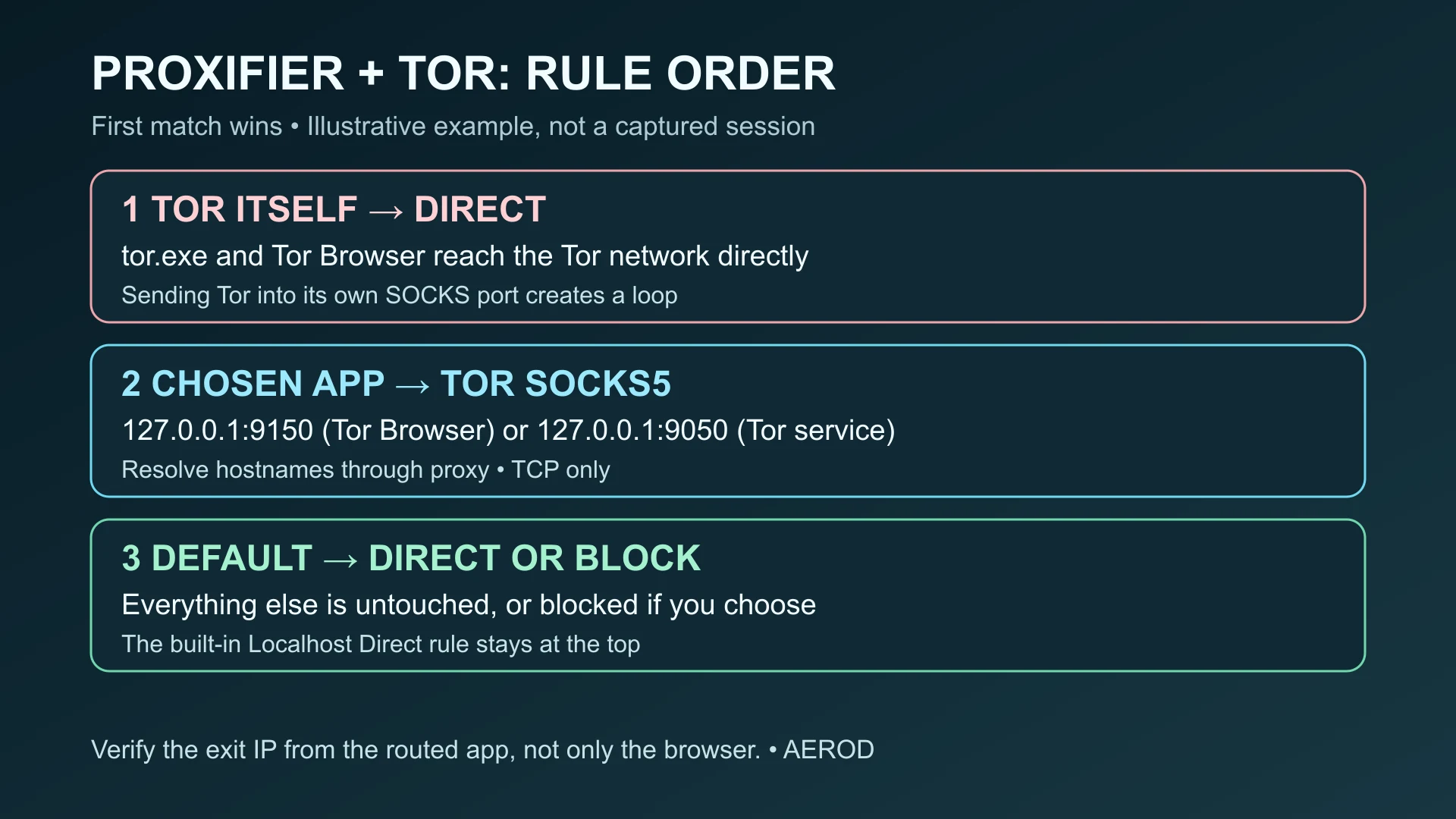
- Keep a Direct rule for Tor's own processes above any rule that uses the Tor proxy, so Tor's connections are never sent back into Tor.
- Route only the specific application you mean to.
Two limits matter before you start. The Tor Project says other programs do not get Tor Browser's protections. And Tor carries TCP streams, so UDP traffic such as voice, games or QUIC will not go through this setup.
This is a documentation-based guide using the Proxifier v4 for Windows documentation, the tor manual and the Tor Project's own guidance, checked on 25 October 2026. The rule values are illustrative examples, not a captured session or an Aerod anonymity test.
Before you start: what this setup can and cannot do
- It changes the route, not the application's behaviour. Tor's FAQ says the Tor Project hasn't researched "the application-level anonymity issues" of most programs well enough. An app can still send account names, device identifiers or its own telemetry. Arti's documentation advises against routing an application through Tor "without a thorough understanding of the data transmitted by that application".
- Browsers are a special case. The Tor FAQ states it is "impossible to use other browsers and get the same level of protections as when using Tor Browser". For web browsing, use Tor Browser itself. See VPN vs Tor for when Tor is the right tool at all.
- TCP only. Tor's SOCKS port relays TCP streams. Proxifier's documentation describes tunnelling TCP connections. Apps that need UDP will fail or bypass the route.
- Use it lawfully and within the terms of the services you connect to.
Step 1: Choose port 9150 or 9050
The Tor Project FAQ explains: "Typically Tor listens for SOCKS connections on port 9050. Tor Browser listens on port 9150." The tor manual lists SocksPort with a default of 9050.
On narrow screens, scroll the table horizontally. Keyboard users can focus the table region and use the arrow keys.
| You run | Proxifier proxy entry | Note |
|---|---|---|
| Tor Browser (desktop) | SOCKS5, 127.0.0.1, port 9150 | Works only while Tor Browser is open and connected |
Standalone Tor service (tor / Tor Expert Bundle) | SOCKS5, 127.0.0.1, port 9050 | Runs without the browser; configure it in torrc |
| Arti (Tor's Rust client) | SOCKS5, 127.0.0.1, port 9150 | Arti's guide says it "operates on port 9150" |
Keep the SOCKS port on localhost. The tor manual warns that the SOCKS protocol "is unencrypted and (as we use it) unauthenticated". Exposing it on another address could let anyone on your network use your computer as an open proxy.
Step 2: Add Tor as a SOCKS5 proxy in Proxifier
- Open Profile → Proxy Servers and click Add, as described in Proxifier's Quick Start.
- Enter address
127.0.0.1, the port from Step 1, and protocol SOCKS Version 5. Leave authentication empty unless you are using circuit separation (Step 6). - When Proxifier asks whether to use the new proxy by default, choose No. You will route only selected apps with a rule instead.
- Optionally run the built-in proxy check while Tor is connected. If it fails, start or reconnect Tor first. The Proxifier setup guide covers the checker in detail.
Step 3: Resolve hostnames through Tor
If your computer resolves the hostname locally and hands Tor only an IP address, your DNS resolver still sees which names you looked up. The Tor FAQ warns that "applications that do DNS resolves themselves may leak information". The tor manual calls SOCKS connections that carry only an IP address "unsafe variants of the socks protocol".
In Proxifier's name resolution settings, turn off automatic detection and enable Resolve hostnames through proxy. Proxifier then gives the application a placeholder address such as 127.8.x.x and sends the hostname to the proxy. That is why rules based on IP addresses do not work in this mode; use process names and hostnames instead. The Proxifier DNS leak fix explains the placeholder addresses and the exception lists.
To confirm what Tor receives, the tor manual offers two options for torrc:
TestSocks 1logs whether each SOCKS request used a safe or unsafe variant.SafeSocks 1rejects requests that arrive with only an IP address.
Step 4: Add rules in the right order (and avoid loops)
Proxifier's rules are checked top to bottom, and the first match wins. Tor must reach the Tor network directly. If Proxifier sends Tor's own connections into Tor's SOCKS port, they loop. Proxifier's connection loop page says such connections from a local proxy program must bypass Proxifier, and that Proxifier blocks new connections when it detects a loop.
| Order | Rule | Applications | Action |
|---|---|---|---|
| 1 | Localhost (built in) | Any | Direct |
| 2 | Tor itself | tor.exe; firefox.exe from the Tor Browser folder, or your Tor service's executable | Direct |
| 3 | App through Tor | The one program you chose, for example example-client.exe | Proxy SOCKS5 127.0.0.1:9150 (or 9050) |
| 4 | Default | Everything else | Direct (selective routing) or Block |
These are example values, not a profile to import. Tor Browser's bundled firefox.exe already uses Tor's SOCKS port by itself. A Direct rule keeps Proxifier from processing those connections twice.
If you also run regular Firefox, match the Tor Browser copy by its full path rather than by name. The Proxifier rules examples show path-based rules. To stop unmatched connections instead of letting them go direct, see Proxifier Default Block.
Step 5: Verify the route from the app you proxied
- Open Proxifier's Connections and Log panes. The routed app's connections should show the Tor proxy rule. Tor's own connections should show Direct.
- From the routed app, open an IP-echo page or Aerod IP Lookup. The address should be a Tor exit relay, not your own. You can confirm it is a Tor exit with the Tor Project's check service.
- With
TestSocks 1, Tor's log should show safe SOCKS requests, meaning hostnames rather than IP addresses. - If the app is a browser, also run the WebRTC leak test. Browser features can expose addresses outside the proxied route.
Step 6 (optional): Keep apps on separate Tor circuits
By default, connections from different apps through the same SOCKS port can share a Tor circuit. The tor manual documents IsolateSOCKSAuth, which is on by default: streams with different SOCKS usernames and passwords do not share circuits.
In Proxifier, you can add two proxy entries for the same 127.0.0.1 port, each with a different made-up username and password, then point each app's rule at its own entry. These credentials are only labels for Tor; they are not secrets.
Alternatively, add a second SocksPort line in torrc. The manual says Tor isolates streams between separate listeners by default.
Troubleshooting
| Symptom | Likely cause | Check |
|---|---|---|
| Proxy check fails or connection refused | Tor is not running, or the wrong port | Start Tor Browser (9150) or the Tor service (9050), then match the port |
| Proxifier reports a connection loop | Tor's own traffic is matched by the Tor proxy rule | Put the Direct rule for Tor's processes above the proxy rule |
| App works but shows your real IP | The rule does not match the process that actually connects | See the process checks in Proxifier not working |
| Names fail to resolve | Local resolution while the network blocks DNS, or SafeSocks rejecting IP-only requests | Enable Resolve hostnames through proxy |
| Voice, game or video calls fail | UDP traffic | Tor does not carry UDP; this app is not a fit |
| Many sites block or show CAPTCHAs | Shared Tor exit addresses | Expected behaviour; see why you keep getting CAPTCHAs |
FAQ
Which port does Proxifier use for Tor, 9050 or 9150?
Use 127.0.0.1:9150 while Tor Browser is running, or 127.0.0.1:9050 for the standalone Tor service. The Tor Project FAQ says Tor typically listens on 9050 and Tor Browser on 9150.
Why does Proxifier report a connection loop with Tor?
Tor's own connections are being sent back into Tor's SOCKS port. Add a Direct rule for Tor's processes above the rule that uses the Tor proxy.
Does Proxifier with Tor make any app anonymous?
No. It changes the network route for TCP connections, but the application can still reveal identifying data. The Tor Project says other browsers cannot get Tor Browser's protections.
Can I send UDP traffic through Tor with Proxifier?
No. Tor carries TCP streams through its SOCKS port, so voice, game and other UDP traffic will not work through this setup.
How do I stop DNS leaks with Proxifier and Tor?
Disable automatic DNS detection and enable Resolve hostnames through proxy so hostnames go to Tor. Tor's TestSocks option can log whether requests arrived with hostnames.